
Overview
Connect LinkedIn and Instagram so the conversations you have there keep your deals current, the same way Gmail does. Every brings in your contacts, reads your recent messages, and attaches each conversation to the right person and deal. What You Can Do:- Add your LinkedIn connections and the Instagram accounts you follow to People, matched to records you already have
- Sync your recent LinkedIn messages and Instagram DMs to the right person and deal
- Let deals update their activity, next steps, and stage from those conversations
- Send a LinkedIn reply from a deal, or let Auto mode reply and follow up for you
Open Connections
LinkedIn and Instagram are in the Communication section, next to Gmail & Calendar
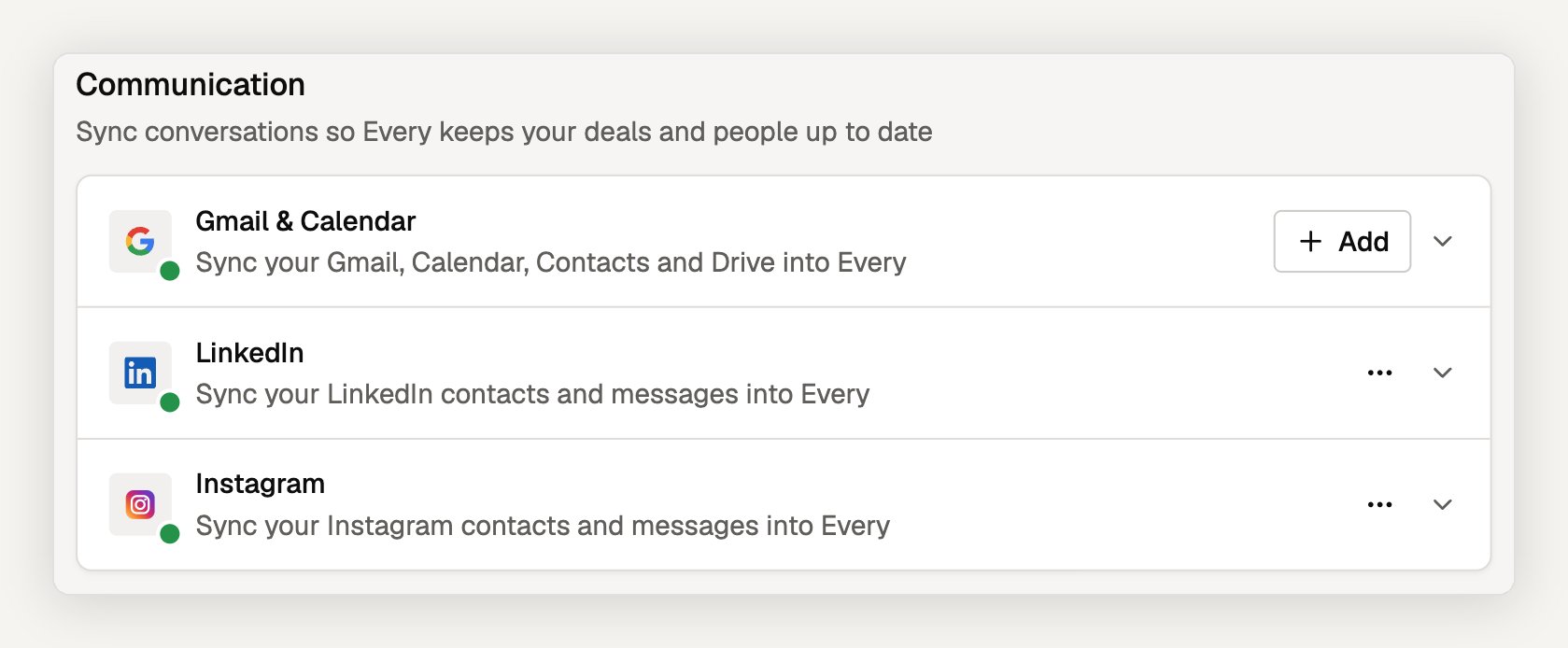
Connecting LinkedIn or Instagram
Go to Agent → Connections → Communication → find the LinkedIn or Instagram row → Connect. Every opens a secure browser it hosts, inside a dialog. You sign in on LinkedIn’s or Instagram’s own page, including any two-step verification code they ask for. When the sign-in finishes, the dialog closes and the first import starts.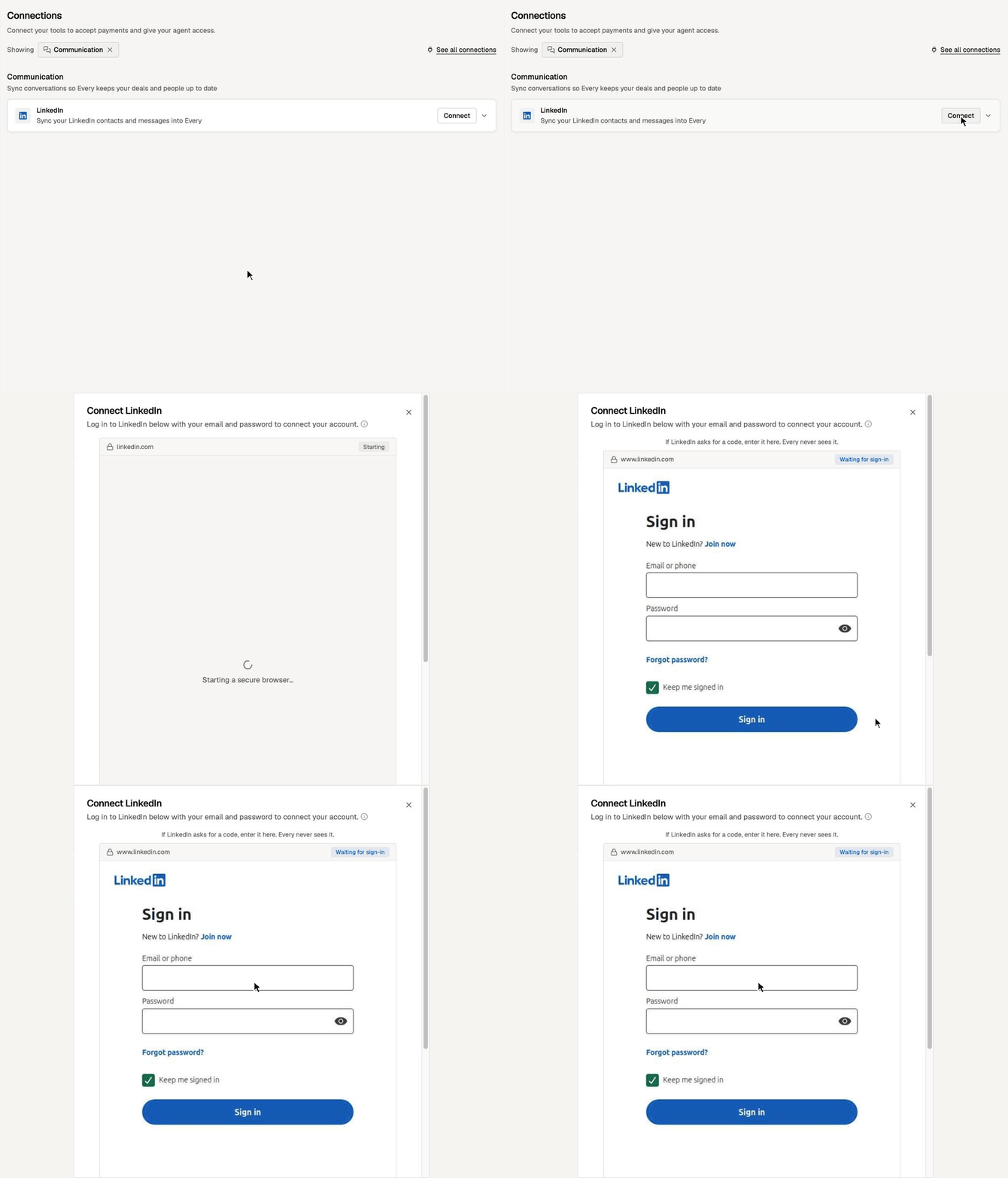
- Every doesn’t store your password. You type it into LinkedIn’s or Instagram’s page, not into Every.
- Every keeps only the signed-in session, encrypted, and uses it to run your syncs and the sends you ask for.
- Disconnect deletes Every’s copy of the session. It doesn’t sign you out of LinkedIn or Instagram.
On LinkedIn, Sign in with Google and Sign in with Apple aren’t available in the connect window. If you normally use one of those, set a LinkedIn password first, then sign in with your email and that password.
Teams
Each teammate connects their own account. A connection belongs to the person who made it: only they can sync or send from it. The people, messages, and deal activity it imports are shared with your workspace. Open a network’s row to see which teammates have connected under Team members.What syncs
Open a connected row to see its sync status. Each network has two parts: your contacts and your messages.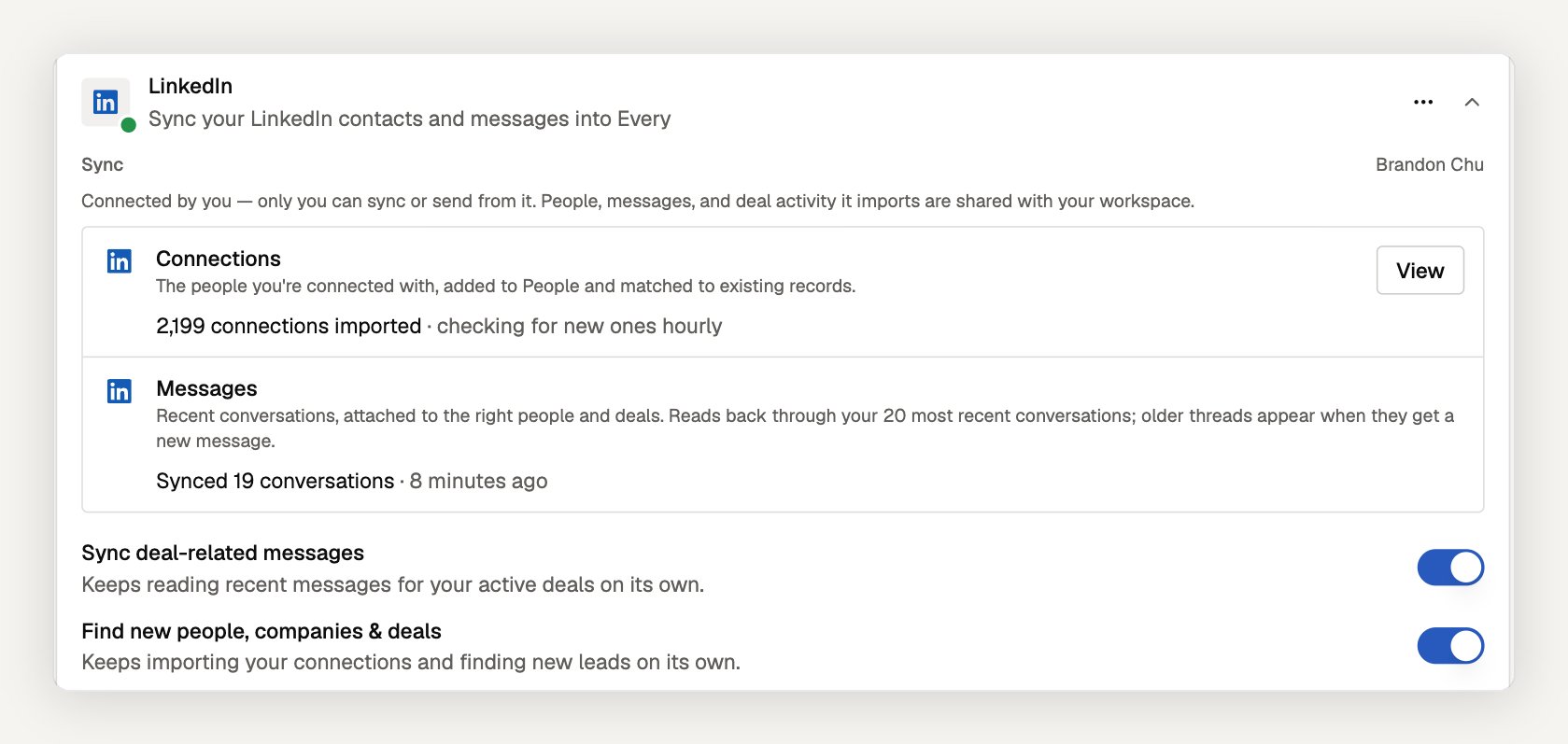
Contacts are added to People and matched to existing records, so someone you already have in Every isn’t added twice. The row shows how many were imported and how often Every checks for new ones. Select View to open People filtered to that import.
Messages attach to the right person and deal. The first sync reads back through your 20 most recent conversations on each network. Older threads appear once they get a new message.
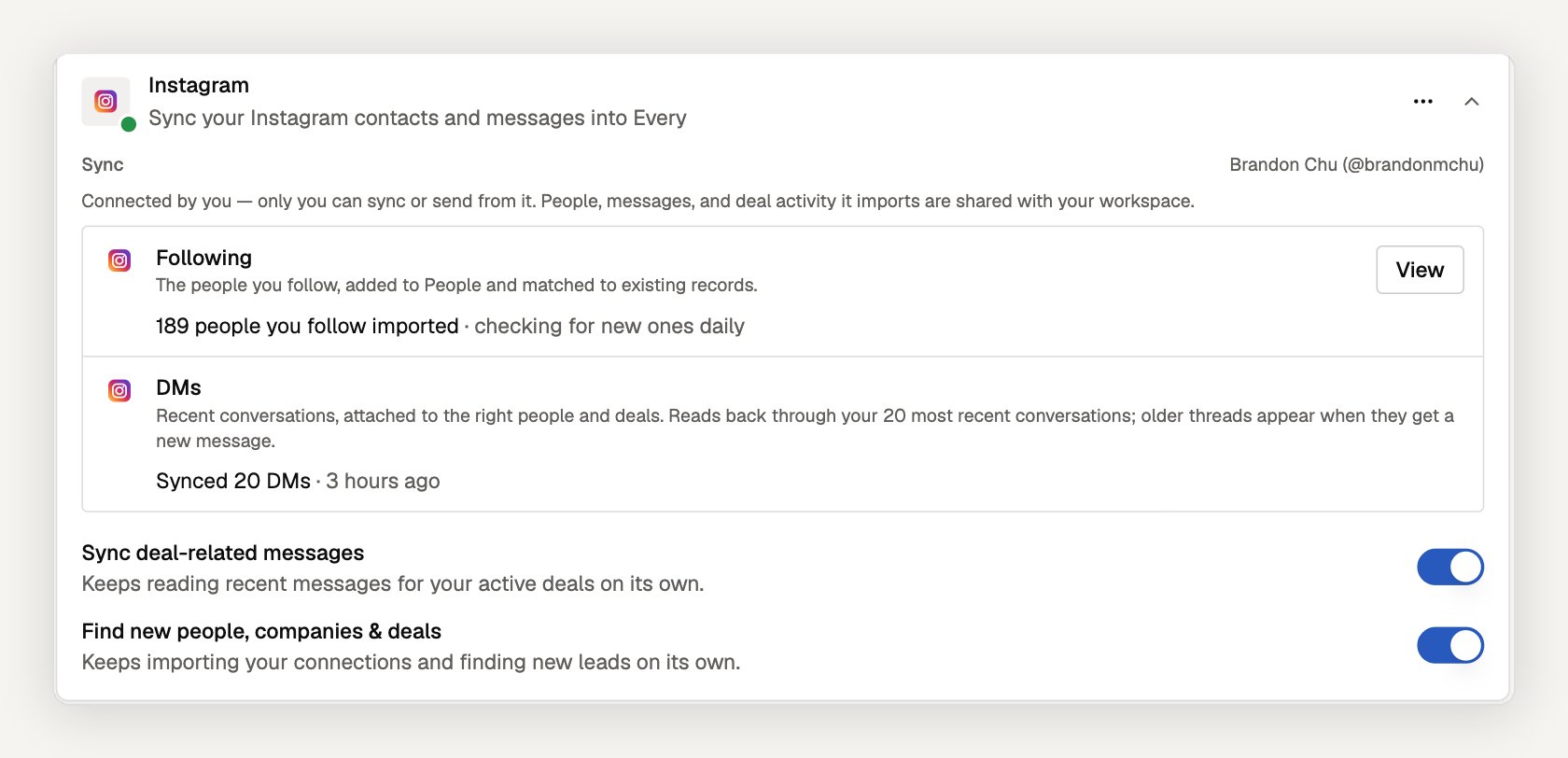
Sync switches
Each network has two switches, and both start on:
Turn a switch off to stop that part from running on its own. Your connection stays in place, and what was already imported stays in Every.
More options
The ⋯ menu on a connected row has:- Test connection — checks that the saved session still works
- View sync history — recent contact and message syncs
- Open profile on LinkedIn / Open profile on Instagram
- Disconnect
LinkedIn and Instagram in your deals
Incoming and outgoing messages are attached to the right person and deal. Every reads new messages as they arrive and updates the deal’s activity, next steps, and stage, so the board reflects where each conversation stands and which channel reaches each person. When a deal’s next step is a message on LinkedIn or Instagram, Every drafts it for that channel:- LinkedIn: select Send via Every on the plan step. Every shows the message and recipient, and sends it from your connected LinkedIn account when you confirm.
- Instagram: select Copy message and send it from Instagram yourself.
Frequently asked questions
Does Every see or store my LinkedIn or Instagram password?
Does Every see or store my LinkedIn or Instagram password?
No. You sign in on LinkedIn’s or Instagram’s own page inside a secure browser Every hosts. Every keeps only the signed-in session, encrypted, and uses it to run your syncs.
Which Instagram accounts come in: followers or following?
Which Instagram accounts come in: followers or following?
Following. Every imports the accounts you follow, not the accounts that follow you.
Why don't I see older conversations?
Why don't I see older conversations?
Every reads back through your 20 most recent conversations on each network. An older thread shows up as soon as it gets a new message.
Can my teammates send from my LinkedIn?
Can my teammates send from my LinkedIn?
No. Only the person who connected an account can sync or send from it. Teammates see the people, messages, and deal activity it imports, because those are shared with the workspace.
Can I send Instagram messages from a deal?
Can I send Instagram messages from a deal?
Not by hand from the deal yet. Instagram steps show Copy message so you can send from Instagram. Auto mode can send Instagram replies and follow-ups on deals where you turn it on.
What happens to imported people if I disconnect?
What happens to imported people if I disconnect?
They stay in People. Disconnecting deletes Every’s copy of your session and stops future syncs; it doesn’t remove records Every already added.
Troubleshooting
Row shows “Reconnect needed”: The saved session stopped working, for example because LinkedIn or Instagram signed it out. Select Reconnect and sign in again. Syncs resume from where they stopped. LinkedIn or Instagram asked for a security check: Open LinkedIn or Instagram, complete the check there, then select Reconnect in Every. “Stopped early”: LinkedIn or Instagram slowed the sync down. Every picks up where it left off on the next run. Not available in your region: The row says so when Every can’t connect that network from your region yet. For LinkedIn, the row offers the Every Chrome extension as another way to sync.Next Steps
Auto mode
Let Every reply and follow up on a deal without asking first
Sales Pipeline
See how messages update deals, plans, and stages
Google Workspace
Connect one or more Gmail accounts and your calendar
People
Review the people your connections brought in
Need help? Contact support at hello@every.ai