
Overview
Google Workspace integration connects Every with your Gmail, Calendar, Drive, and Contacts. Import people, send emails through the Agent, attach Drive files, and schedule meetings seamlessly. What You Can Do:- Import people from Google Contacts
- Send emails through Gmail (via Every Agent)
- Create and view calendar events
- Attach Google Drive files you create in or open with Every (Drive Picker)
- Keep deals current from your Gmail conversations
- Connect more than one Gmail account
- Automate workflows with Google services
Connecting Google Workspace
Quick Setup
Go to Agent → Connections → Communication → open the Gmail & Calendar row → connect your Google account → review permissions → click Allow → return to Every.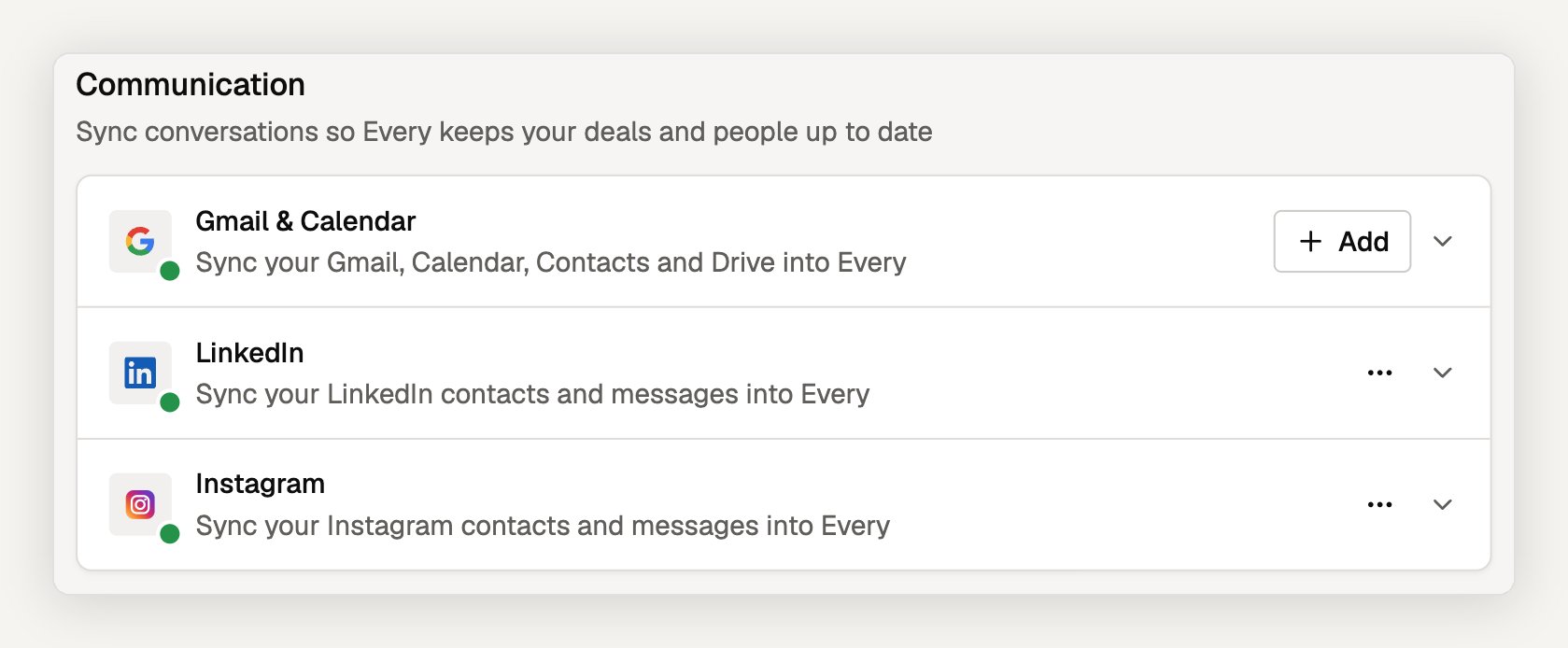
Connecting more than one Gmail account
You can connect more than one Gmail account, for example a work inbox and a personal one you also use for clients. Once your first account is connected, select Add on the Gmail & Calendar row, choose the other Google account, and review its permissions. Each connected account is listed in the row with its own sync settings and ⋯ menu (Manage Google permissions, Use in this workspace, Sync history, Disconnect). On a team workspace, each account also has a Workspace access control for whether teammates can use it or it stays private to you.LinkedIn and Instagram are in the same Communication section. See LinkedIn & Instagram.
- Gmail: Send emails, read messages
- Calendar: Read and write events
- Drive: Access files you create in or open with Every (the
drive.filescope — Every cannot browse your full Drive) - Contacts: Read contact information
You can grant partial permissions (e.g., only Contacts). Add more scopes later as needed.
Managing Scopes
Scopes define what Every can access. If a feature requires missing scopes, the app prompts you to reconnect and grant additional permissions. To Update: Agent → Connections → Gmail & Calendar → the account’s ⋯ menu → Manage Google permissions → grant additional permissions. If an account shows Reconnect needed, select Reconnect on the row.Gmail Integration
Sending Emails via Agent
The Every Agent can send emails through your Gmail account: How It Works: Chat with Agent (“Send an email to ACME Corp thanking them for payment”) → Agent drafts the exact email → The app shows a permission card → You approve or deny → Approved email is sent from your Gmail Use Cases:- Invoice reminders and thank you messages
- Follow-ups and project updates
- Meeting confirmations
- Custom client communications
Suggested Responses
Agent generates context-aware email suggestions (API:/api/generate-suggested-messages). View client message → Generate response → Select from 2-3 options → Customize → Send.
Google Calendar Integration
Managing Events
Via Agent: “Create a calendar event for my meeting with ACME Corp next Tuesday at 2 PM” Features:- Meeting title and description
- Date, time, and location
- Attendee invitations
- Reminders and notifications
- Client meeting scheduling
- Invoice due date reminders
- Project milestone tracking
- Follow-up task scheduling
Google Drive Integration
Attaching Files from Drive
Every connects to Drive with thedrive.file scope. This is a privacy-preserving, file-by-file grant: Every can only access files you explicitly pick through the Google Drive Picker (or that you create with Every) — it cannot browse, enumerate, or search your full Drive folder tree, and it has no access to documents you haven’t selected.
Every does not read your entire Drive. The Drive Picker shows your files so you can choose which ones to share; once you select a file, that specific file becomes accessible to Every. Files you never pick stay private.
- Attach a contract you select to an invoice
- Add a proposal template or spec sheet you pick from Drive
- Reference a document you’ve shared with Every
Attaching Files
Create/edit invoice or proposal → Click “Attach from Drive” → Pick a file in the Google Drive Picker → Select file → Link added → Client can access (based on Drive permissions) Supported: Documents, Spreadsheets, Presentations, Images, PDFs, any file type you select in the Picker Permissions: File access is managed in Google Drive. Picking a file in the Picker grants Every access to that file only. Consider making files public or sharing with the client email so recipients can open them.Google Contacts Integration
Importing People
Every provides multiple ways to import people from Google: 1. Direct Import (Bulk): Go to People page → Click Import dropdown → Select Google Contacts- Fetches all your Google contacts at once
- Automatically filters out non-person contacts (organizations, bots)
- Deduplicates against existing people by email
- Captures social links (LinkedIn, Twitter, GitHub, etc.)
- One-click import of new people
Google Contacts Sync
Every tracks which people exist in your team’s Google Contacts, helping you identify established relationships. How it works:- When a person is created with an email, Every checks if that email exists in any team member’s Google Contacts
- A sync indicator badge appears on people that match
- Background sync keeps the relationship indicator current
- See at a glance which people are already in your Google ecosystem
- Avoid duplicating people you already have relationships with
- Know when colleagues have interacted with someone before
Company Enrichment
After a company is created, open its record and click Enrich. Every Agent uses Gmail, Calendar, Google Contacts, and public web data to enrich the record with company info, additional people, and social profiles.Every Agent Integration
The Agent leverages Google integrations with thecheck_google_services_status tool to verify connections before using features.
Agent Capabilities:
- Send Gmail emails
- Create calendar events
- Attach Drive files you’ve picked or created with Every
- Reference contact data
- Schedule follow-ups and reminders
Managing Connection
Connection Status
View Status: Agent → Connections → Communication → Gmail & Calendar. Each connected account shows its own status. Status Indicators:- ✅ Connected
- ⚠️ Needs reconnection
- ❌ Not connected
Reconnecting
When Needed: Adding new scopes, token expired, connection error, or permission changes To Reconnect: Agent → Connections → Gmail & Calendar → Reconnect → Log in → Grant permissionsDisconnecting
To Disconnect: Agent → Connections → Gmail & Calendar → the account’s ⋯ menu → Disconnect → Confirm. With more than one account connected, this disconnects only that account. To stop using an account in one workspace but keep it connected elsewhere, turn off Use in this workspace in the same menu. What Happens:- Stored tokens removed
- Features become unavailable
- Historical data preserved (imported people and companies, past Drive links, email/calendar history)
- Can reconnect anytime
Deleting Google data from Every
Disconnecting stops future Google access. It does not remove people, company records, or relationship activity that Every already added to your workspace.- Delete Google-sourced data but keep your Every account: Email hello@every.ai from the email address on your Every account. Name the workspace and connected Google account, and describe what Google-sourced data you want removed. We verify the request before deleting data.
- Delete your personal Every account in a shared workspace: Go to Settings → Profile → Delete my account. This permanently deletes your private conversations, connected Google account and access tokens, and personal notification settings. Shared business records stay with the workspace, with your attribution removed.
- Delete a solo workspace and all of its data: Go to Settings → Business → Delete organization. Deletion is scheduled for 24 hours and can be cancelled before it runs. When it completes, the workspace’s records, files, connected-account data, and conversations are permanently deleted.
If you are the only member of a workspace, deleting the organization is the available full-deletion path. If you are the only administrator of a shared workspace, make another member an administrator before deleting your personal account.
Frequently asked questions
Can Every read my entire Google Drive?
Can Every read my entire Google Drive?
No. Every uses Google’s
drive.file permission. It can access files you explicitly select through the Drive Picker and files created with Every, not browse your full Drive.Can Every send Gmail messages without review?
Can Every send Gmail messages without review?
In interactive chat, the send tool shows the recipient, subject, and message in a permission card. Scheduled and unattended routines can prepare a draft but cannot perform the final send while nobody is present.The one exception is a deal where you turned on Auto mode. There, Every replies to and follows up with that deal’s contact from Gmail on its own, inside the existing email thread. Each message waits a few minutes so you can cancel it, and everything it sends appears in the deal’s Activity.
Can I connect more than one Gmail account?
Can I connect more than one Gmail account?
Yes. Select Add on the Gmail & Calendar row in Connections. Each account keeps its own permissions and sync settings.
Do I need to grant every Google permission?
Do I need to grant every Google permission?
No. You can connect only the scopes needed for the workflows you use. If a later task needs another permission, Every asks you to reconnect and add it.
What happens to imported people if I disconnect Google?
What happens to imported people if I disconnect Google?
The Google connection stops working, but people and other records already imported into Every remain in your workspace until you edit or remove them there.
Troubleshooting
Connection Issues
Common problems: Wrong account selected, pop-up blocked, third-party cookies disabled, organization security policy Solutions: Allow pop-ups for every.ai, enable third-party cookies, try different browser, check organization GSuite settings, or contact IT for corporate accountsFeature Not Working
Check: Connection status, required scopes granted, token not expired, internet connection Solution: Reconnect Google account, grant missing scopes, refresh page, or contact supportService-Specific Issues
Gmail not sending: Verifygmail.send scope granted, email draft approved, check sent items in Gmail, or reconnect
Calendar events not creating: Verify Calendar scope granted, correct calendar selected, valid date/time, or reconnect
Drive file not accessible: Verify Drive scope granted, re-pick the file in the Drive Picker (the drive.file scope only reaches files you’ve selected or created with Every), check file permissions, or reconnect
Best Practices
Next Steps
Connect Google
Set up Google Workspace integration
Import People
Import people from Google Contacts
Use Every Agent
Let Agent send emails and create events
Manage Companies
Enrich companies with Google data
Need help? Contact support at hello@every.ai