
Overview
Bookings let clients self-schedule appointments through a public page at{your-slug}.every.ai. You configure which offerings are bookable, set your availability and payment requirements, then share the link. Clients pick a service, choose a date and time, fill in their details, pay if required, and receive confirmation with a calendar export.
Open Bookings
View and manage all your bookings in Every
How It Works
For you (the business owner):- Create offerings you want to make bookable
- Configure availability, payment requirements, and booking policy
- Share your booking link:
{your-slug}.every.ai/booking(set your slug in organization settings)
- Visit your booking page and select a service
- Pick an available date and time (shown in their local timezone)
- Fill in their details
- Pay if required (or skip if free / schedule-later)
- Receive confirmation email with calendar export
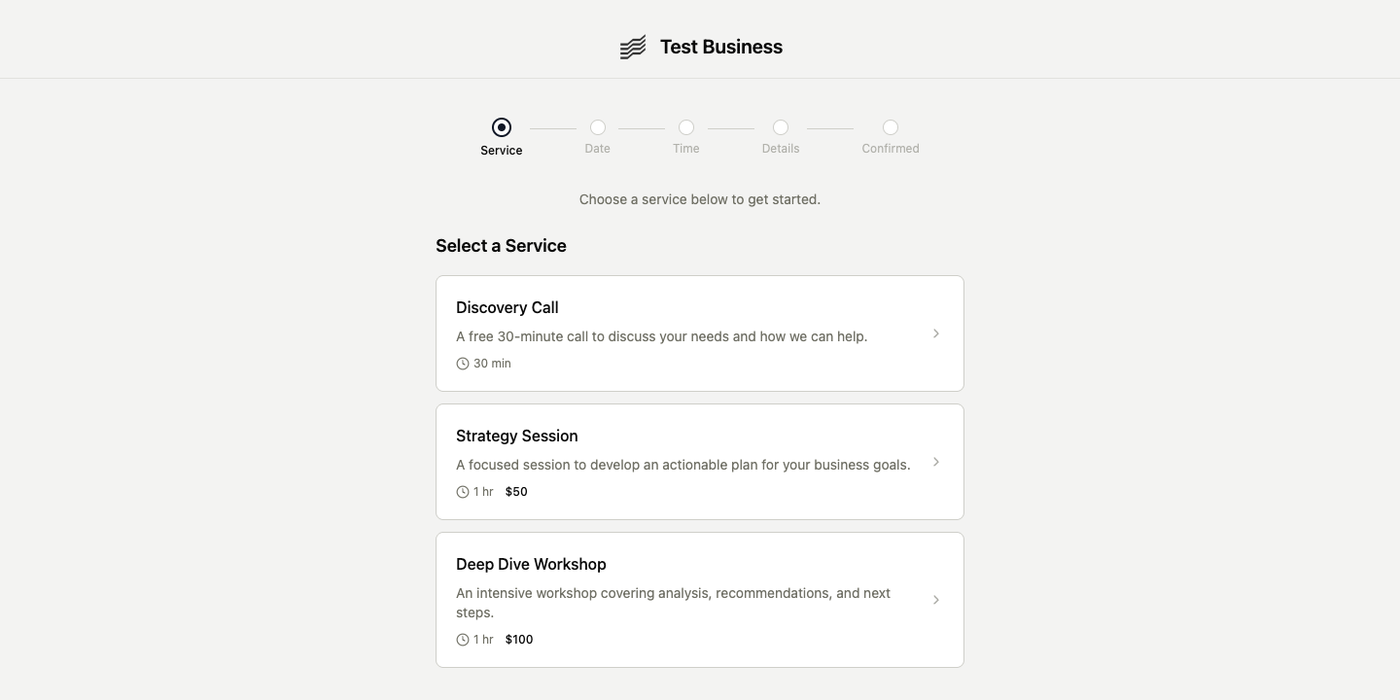
Booking Modes
Every booking uses one of three modes, configured per offering:| Mode | How It Works | Best For |
|---|---|---|
| Standard | Client picks date + time + pays at booking | Paid consultations, sessions with set pricing |
| Free | Client picks date + time, no payment | Discovery calls, free consultations, intro meetings |
| Schedule Later | Client requests a booking, you schedule the date/time after | Custom engagements where you need to coordinate timing |
Booking mode is set per offering in your booking configuration. Different offerings can use different modes.
Payment Options
For offerings that require payment, you can choose when clients pay:| Payment Timing | Description |
|---|---|
| No payment | No charge collected (used with Free mode) |
| Pay at booking | Client pays immediately via Stripe Checkout when they book |
| Pay before service | Client’s card is saved at booking and charged automatically N days before the appointment |
Payment collection requires a connected Stripe account. Set up Stripe in Settings if you haven’t already.
Configuring Your Booking Page
Go to Booking Settings to configure everything.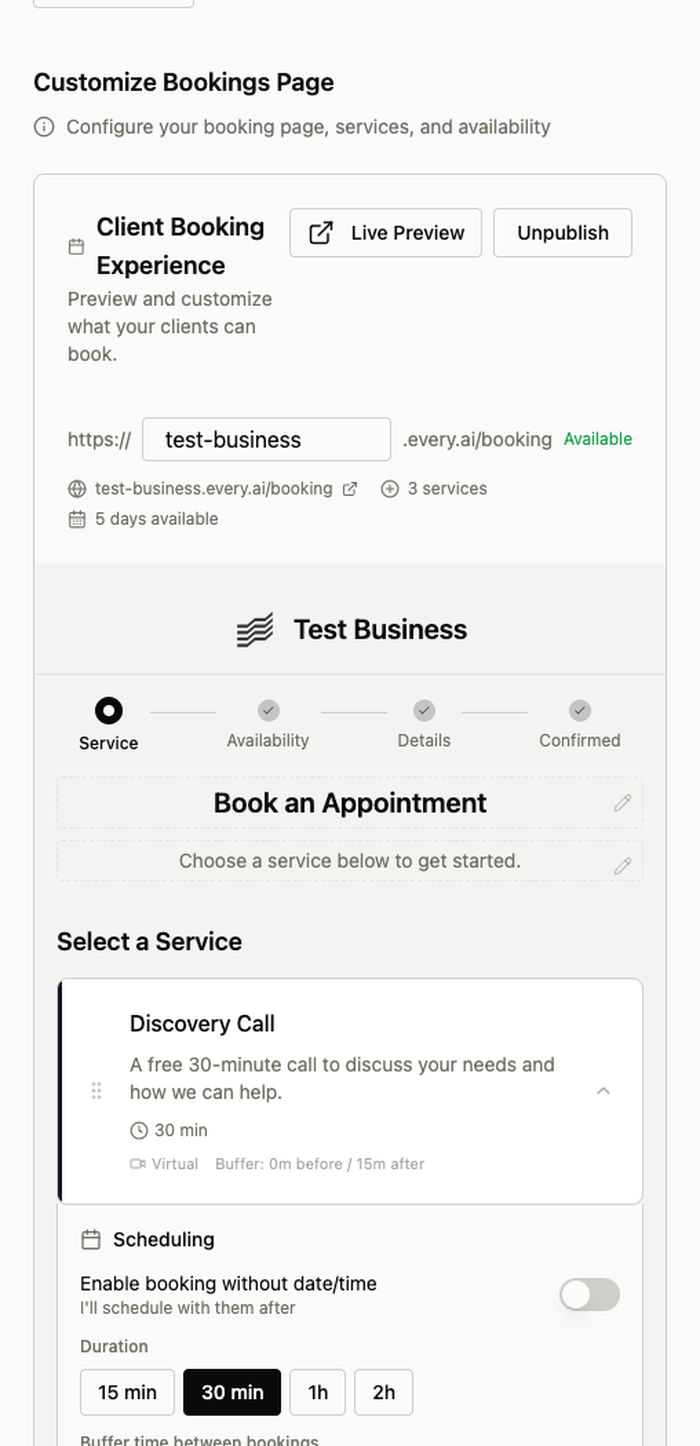
Selecting Bookable Offerings
Your booking page uses your existing Offerings. In booking settings, select which offerings should appear on your public booking page. Each offering can have its own booking mode and payment timing.Availability Schedule
Set your weekly availability with day-of-week and time ranges. For example: Monday-Friday, 9:00 AM - 5:00 PM. You configure availability in your timezone — clients automatically see those times converted to their local timezone. Date-specific overrides let you block off specific dates (holidays, vacation) or add availability on days you’re normally closed.Google Calendar Integration
Connect Google Calendar to:- Block busy slots — times with existing calendar events won’t appear as available
- Create events on booking — confirmed bookings automatically appear on your calendar
Booking Policy
Add a booking policy using the rich text editor. This appears on your public booking page and can include cancellation terms, preparation instructions, or anything else clients should know before booking.Managing Bookings
Go to Bookings to see all your bookings.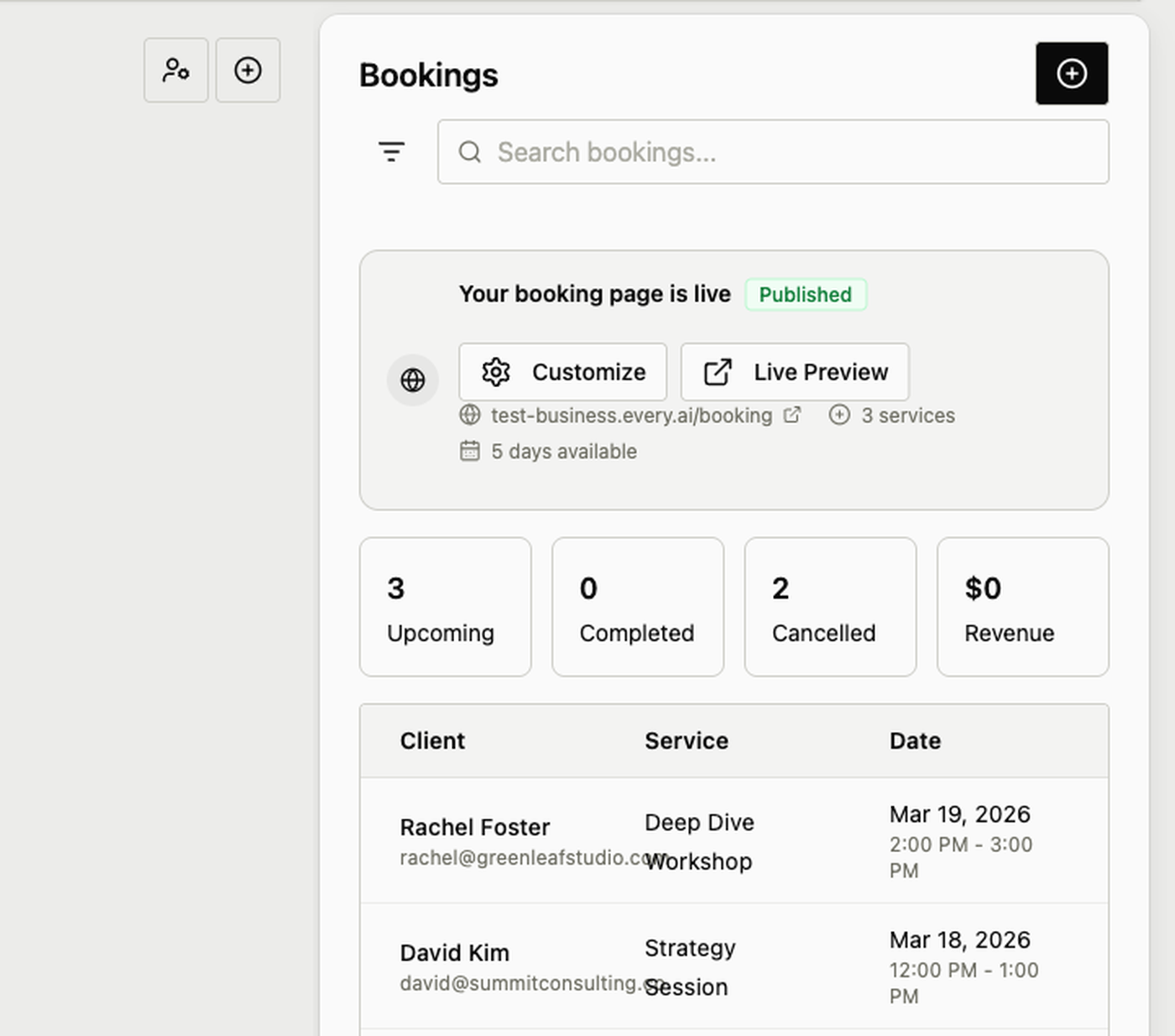
Automated Emails
Every sends automated emails throughout the booking lifecycle:| When It’s Sent | |
|---|---|
| Confirmation | Immediately after booking is created |
| 24-hour reminder | 24 hours before the appointment |
| 1-hour reminder | 1 hour before the appointment |
| Cancellation | When a booking is cancelled |
| Reschedule | When a booking is rescheduled to a new time |
All automated emails are sent to the client’s email address provided during booking. No configuration needed — they work out of the box.
Public Manage Page
Clients can cancel or reschedule their own bookings through a secure link included in their confirmation email. This link uses a unique token — no login required. Clients can:- View their booking details
- Cancel the booking
- Reschedule to a new available time
- Export the appointment to their calendar
Integration with Your Data
Bookings connect deeply with the rest of Every: Offerings: Your booking page pulls directly from your existing offerings. No duplicate setup needed. Contacts & Clients: When someone books for the first time, Every automatically creates a Contact and Client record for them. Returning clients are matched to their existing records. Invoices: When a client pays at booking, Every automatically creates a paid Invoice linked to the booking. This keeps your billing records complete without extra work.Best Practices
Common Workflows
Standard Paid Consultation: Configure offering with Standard mode + Pay at booking → Share link → Client books and pays → Both get confirmation → Google Calendar event created → Reminders sent automatically → Meet with client Free Discovery Call: Configure offering with Free mode → Share link → Client books → Confirmation sent → Reminders at 24h and 1h → Meet with client → Follow up with a proposal or invoice Custom Engagement (Schedule Later): Configure offering with Schedule Later mode → Client requests booking with their details → You review and schedule a specific date/time → Client receives confirmation → Reminders sent automaticallyTroubleshooting
Clients don’t see available times: Check your weekly availability schedule. Verify Google Calendar isn’t blocking all slots with existing events. Check date-specific overrides aren’t blocking the dates. Payment not collected: Verify Stripe is connected in Settings. Confirm the offering is configured with a payment timing other than “No payment.” Client didn’t receive confirmation: Check the email address they entered during booking. Have them check spam/junk folders. The confirmation is sent immediately on booking creation. Calendar event not created: Verify Google Calendar is connected in your booking settings. Check that calendar event creation is enabled.Next Steps
Set Up Offerings
Create the services you want to make bookable
Connect Stripe
Accept payments when clients book
Connect Google
Sync calendar availability and create events
Manage Clients
View clients created from bookings
Need help? Contact support at hello@every.ai