
Overview
People are the individuals in your business world - everyone from active company contacts to potential leads you met at a conference, and individuals you invoice directly. Unlike Companies (which represent businesses), People represent individuals - and a Person can be a commercial party in their own right, with no company required. Key capabilities:- Bill a Person directly - invoices, proposals, recurring plans, expenses, and time entries can target a Person, not just a Company
- Store contact details (name, email, phone, job title)
- Import from LinkedIn and Google Contacts
- Keep your LinkedIn connections and the Instagram accounts you follow in sync by connecting LinkedIn and Instagram
- Affiliate People with one or more Companies through “Works At,” with role-based document access
- AI-powered enrichment and relationship summaries
- Merge duplicate People (and undo a recent merge), and undo an import
- Google Contacts sync for duplicate detection
Open People
View and manage all the people in your network in Every
Creating People
Go to People → Add Person → Fill details → Save Required: Name Recommended: Email address (needed for invoicing and proposals) Optional: Phone, job title, notesBilling a Person Directly
Freelancers and solo operators often bill an individual, not a business - there’s no company between you and the person paying. Every supports this directly: open an invoice, proposal, recurring schedule, expense, or time entry and choose a Person as the party instead of a Company.- A Person you bill directly can be the target of a Deal the same way a Company can
- Delivery and portal sign-in follow the same document access levels (Primary, Copied, Portal, None) as a Company’s affiliated people - set them on the Person’s own email addresses
- You are never required to create a company just to send an invoice to an individual
Importing People
Every supports multiple ways to bulk-import people into your network.Connect LinkedIn or Instagram
The fastest way to bring in your LinkedIn connections and the Instagram accounts you follow is to connect those accounts in Agent → Connections. Every adds them to People, matches them to records you already have, keeps checking for new ones, and syncs your recent messages to the right people and deals. See LinkedIn & Instagram.LinkedIn Import
Prefer not to connect your account? Import your LinkedIn connections from a CSV export instead, with optional AI relationship summaries from your message history. How to export from LinkedIn:- Go to LinkedIn Data Privacy settings
- Click “Get a copy of your data”
- Select “Connections” (and optionally “Messages” for AI summaries) and click “Request archive”
- Wait for the email - LinkedIn often sends two exports over 24-48 hours. The second, larger one is the one you want
- Download the ZIP and extract it - find Connections.csv (and optionally Messages.csv)
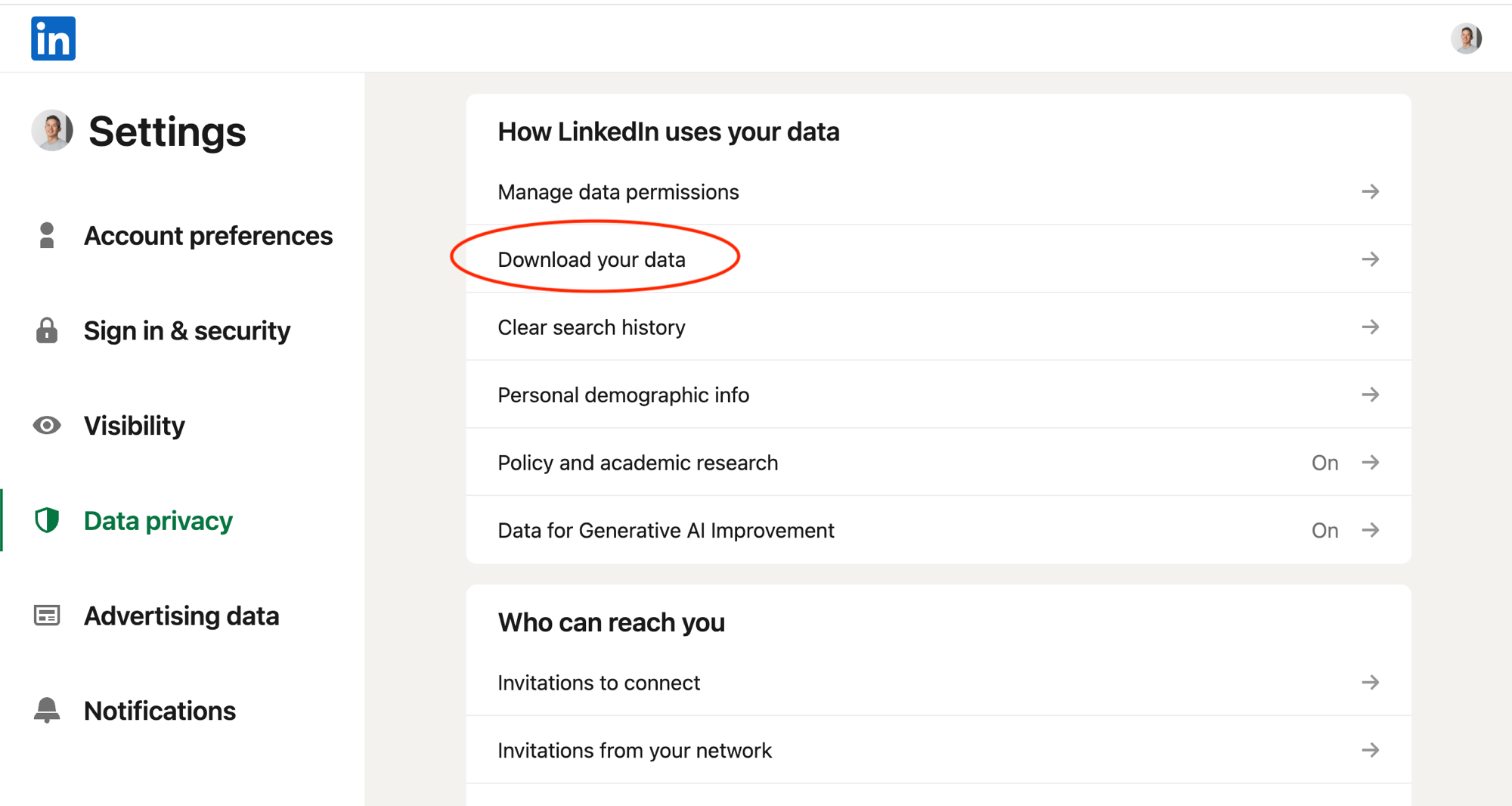
On LinkedIn: Settings → Data privacy → Download your data
- Go to People → Import dropdown → LinkedIn
- Upload your
Connections.csvfile - Preview new people (duplicates are auto-filtered)
- Click Import
AI Relationship Summaries (Optional)
AI Relationship Summaries (Optional)
After importing, upload your LinkedIn Relationship summaries help Every Agent understand your history with each person, enabling better personalized communication suggestions.
Messages.csv to generate AI-powered relationship timelines.- After import completes, click “Upload Messages.csv”
- Every matches your message history to imported people via LinkedIn profile URLs
- AI analyzes your conversations and generates concise summaries
- Summaries appear in each person’s notes section
Google Contacts Import
Import your entire Google Contacts library with one click. How to import:- Go to People → Import dropdown → Google Contacts
- Authorize Google Contacts access if not already connected
- Preview new vs. existing people
- Click Import
Google Contacts Import builds your full contact pool. Scan Contacts on the People page is a separate AI-assisted import workflow that suggests people who may be business contacts. Prospecting evaluates eligible people for those who match what you sell.
Scan Contacts (AI-powered)
- Open People and choose Let Every import your contacts.
- Every reviews available Gmail, Calendar, and Google Contacts relationship context.
- Review the suggested people and select the ones you want to add.
- Every creates the selected records with available interaction context.
Find prospects among imported people
After importing, open Prospects and select Add target to describe who you want to reach. Every scores everyone eligible using professional fit and available relationship evidence, then lists qualified matches on the Prospects page for review. Use Min scores to tune how strong a match needs to be. Existing targets pick up newly imported people automatically. Importing or scanning contacts does not turn every person into a client or deal. The prospecting review and your approval determine who enters the sales pipeline.File Processing with Every Agent
Beyond direct imports, Every Agent can extract contact data from files you upload to chat. Supported formats: CSV, Excel (XLSX, XLS), Word (DOCX), PDF, Images (JPG, PNG) Upload your file and describe what you need - the agent reads and processes the data conversationally.Migrating from another CRM
Use a spreadsheet export when you are moving historical records from another CRM or invoicing tool.- Export the source data as CSV, XLSX, or XLS.
- Open Data → Import and upload one representative file.
- Review the Import Agent’s proposed mapping, especially person-versus-company identity, dates, currencies, status values, and relationships between records.
- Correct the mapping before the final import.
- After completion, compare record counts and spot-check several people, companies, invoices, and balances.
Importing data into Every is different from connecting HubSpot or Xero for live agent access. Use import for records that should live in Every; use an integration when the external system remains the source of truth.
Affiliations: Linking People to Companies
People exist independently but can be affiliated with one or more Companies through a “Works At” relationship, with role-based document access. The same person can be affiliated with multiple companies at once, or with none.How Affiliation Works
An affiliation carries invoice and proposal document access. One Primary, Copied, Portal, or None choice sets a person’s access on a company’s documents. Every Agent can adjust it when needed.- Primary: Receives the main invoice/proposal email (To) and can sign in to the portal - exactly one required per company
- Copied: Cc’d on invoice/proposal emails and can sign in to the portal - can have multiple
- Portal: Not emailed, but can sign in to the portal
- None: Not emailed and no portal sign-in - document links still open for anyone who has them
Linking from the Company Page
- Open a company → its People section → Add
- Search for an existing person or create a new one
- Choose Primary, Copied, Portal, or None
- The first person defaults to Primary; additional people default to Copied
Linking via Agent
You must have exactly one Primary person per company. You cannot have Copied people without a Primary.
People Enrichment
AI-powered enrichment helps fill in details automatically. During company enrichment: When you enrich a company, Every Agent can discover additional people at the company by scanning Gmail headers and Google Contacts for matching email domains. Google Contacts sync: Every tracks which of your contacts exist in team members’ Google Contacts. A sync indicator shows on matching people.Managing People
Viewing & Filtering
Go to People to see all people with:- Search by name, email, company, phone
- Filter by affiliated companies
- Sort by name, date added, or recent activity
Editing People
Open a person → Edit → Update fields → SaveArchiving & Deleting
Archive: Hides the person from the active list while preserving data and affiliations. Can be restored anytime. Delete: Permanently removes the person. Only possible if not linked as a Primary recipient on any company or on their own direct billing.Social & Web Links
Add LinkedIn profiles, websites, and other social links to a person for quick reference. Supported Links: Website, LinkedIn, Twitter, Facebook, Instagram, YouTube, GitHubPeople vs. Companies
Understanding the distinction:Best Practices
Frequently asked questions
What is the difference between a Person and a Company?
What is the difference between a Person and a Company?
A Person is an individual. A Company is a business you work with. Either can be the billed party on proposals, invoices, expenses, and time - a Person doesn’t need a Company to be invoiced. One Person can be affiliated with more than one Company, each with its own document access.
Does importing contacts put everyone into my sales pipeline?
Does importing contacts put everyone into my sales pipeline?
No. Import creates People records. Prospecting separately evaluates eligible people, and each match stays in Prospects until you approve it.
Can I migrate historical CRM data, not just contacts?
Can I migrate historical CRM data, not just contacts?
Yes. Use Data → Import with a CSV or Excel export. The Import Agent can map multiple related Every record types; review its proposed relationships and status mapping before the write.
How does Every prevent duplicate people?
How does Every prevent duplicate people?
Direct imports use email and source identity to skip or match obvious duplicates. No automatic rule can resolve every messy CRM export, so review the preview and spot-check people who share names, emails, or companies. Use Review duplicates to catch the rest, and undo a recent merge if you picked the wrong pair.
Troubleshooting
Person not receiving invoices: Verify their document access is set to Primary or Copied, whether you’re billing them directly or through a company. Check the email address is correct. Duplicate people after import: Open Review duplicates on the People page. Every groups likely matches by confidence; review uncertain pairs before merging. Recent merges can be undone from that workflow. Can’t delete a person: They may be set as the Primary recipient on a company or on their own direct billing. Set another recipient as Primary first. LinkedIn import missing emails: Many LinkedIn users don’t share email addresses. People are still imported by name - enrich later to find contact details.Next Steps
Manage Companies
Affiliate people with the companies they work at
Create Invoices
Bill a Person or a Company directly
Create Proposals
Send proposals to people, with or without a company
Every Agent
Learn more about what the agent can do
Need help? Contact support at hello@every.ai