> ## Documentation Index
> Fetch the complete documentation index at: https://docs.every.ai/llms.txt
> Use this file to discover all available pages before exploring further.
# People
> Manage all the people in your business network - individuals you can bill directly, company contacts, leads, and everyone you know - with importing, enrichment, and affiliations
## Overview
People are the **individuals** in your business world - everyone from active company contacts to potential leads you met at a conference, and individuals you invoice directly. Unlike [Companies](/network/companies) (which represent businesses), People represent individuals - and a Person can be a commercial party in their own right, with no company required.
**Key capabilities:**
* Bill a Person directly - invoices, proposals, recurring plans, expenses, and time entries can target a Person, not just a Company
* Store contact details (name, email, phone, job title)
* Import from [LinkedIn](https://app.every.ai/network/people) and [Google Contacts](https://app.every.ai/network/people)
* Affiliate People with one or more [Companies](/network/companies) through "Works At," with role-based document access
* AI-powered enrichment and relationship summaries
* Merge duplicate People (and undo a recent merge), and undo an import
* Google Contacts sync for duplicate detection
View and manage all the people in your network in Every
## Creating People
Go to [**People**](https://app.every.ai/network/people) → **Add Person** → Fill details → **Save**
**Required:** Name
**Recommended:** Email address (needed for invoicing and proposals)
**Optional:** Phone, job title, notes
**Ask Every Agent:** Create people quickly:
* "Create a person named John Smith with email [john@acme.com](mailto:john@acme.com)"
* "Add a person Sarah Johnson, CFO at TechStart, email [sarah@techstart.com](mailto:sarah@techstart.com)"
* "Create a person for the one I met at the conference - Mike Chen, [mike@startup.io](mailto:mike@startup.io)"
## Billing a Person Directly
Freelancers and solo operators often bill an individual, not a business - there's no company between you and the person paying. Every supports this directly: open an invoice, proposal, recurring schedule, expense, or time entry and choose a **Person** as the party instead of a Company.
* A Person you bill directly can be the target of a [Deal](/prospecting/pipeline) the same way a Company can
* Delivery and portal sign-in follow the same [document access](/network/client-portal) levels (Primary, Copied, Portal, None) as a Company's affiliated people - set them on the Person's own email addresses
* You are never required to create a company just to send an invoice to an individual
**Ask Every Agent:** "Create an invoice for John Smith for \$2,000, no company" or "Send a proposal to Mike Chen directly"
## Importing People
Every supports multiple ways to bulk-import people into your network.
### LinkedIn Import
Import your LinkedIn connections directly from a CSV export, with optional AI relationship summaries from your message history.
**How to export from LinkedIn:**
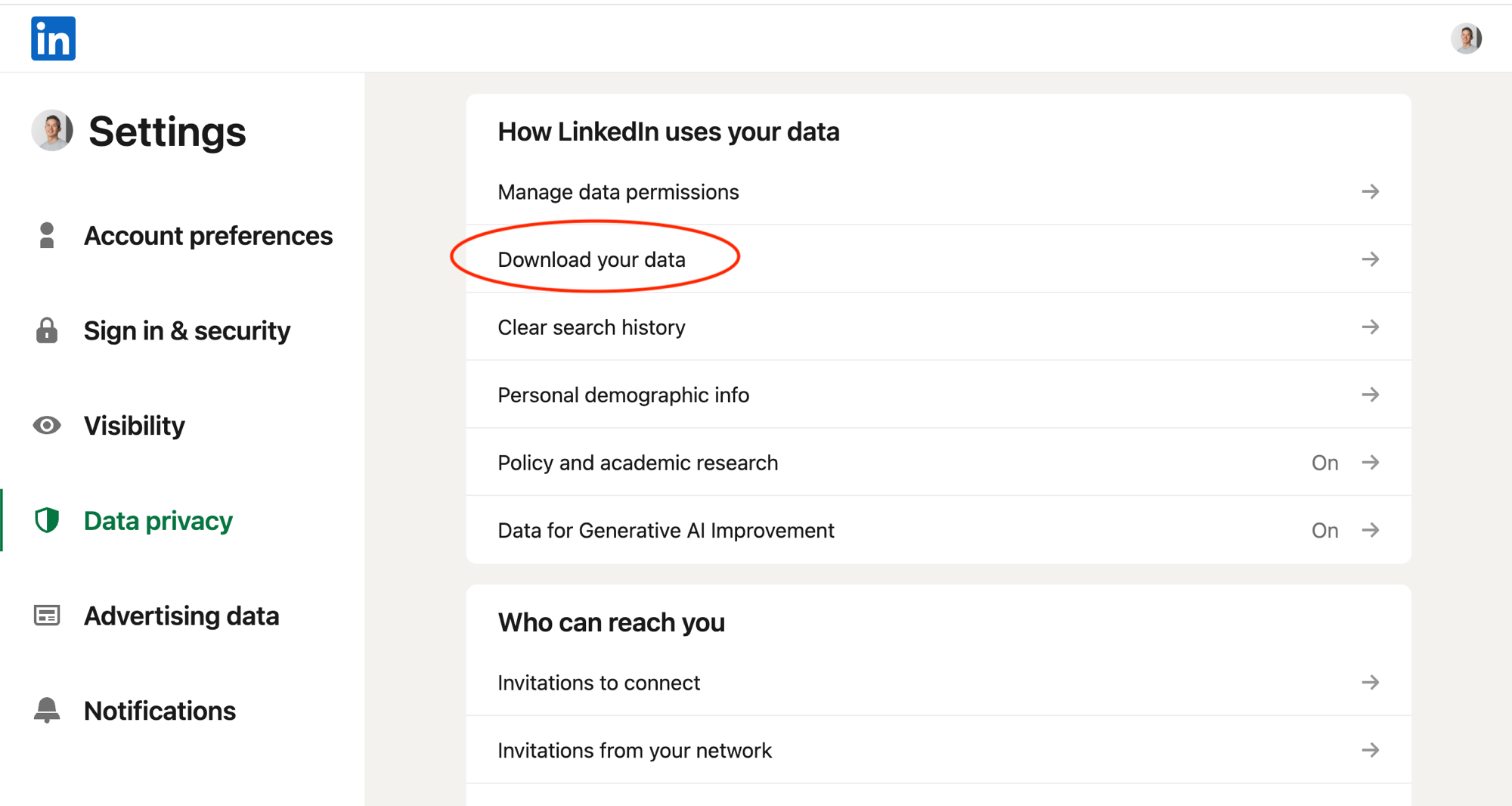
1. Go to [LinkedIn Data Privacy settings](https://www.linkedin.com/mypreferences/d/categories/privacy)
2. Click **"Get a copy of your data"**
3. Select **"Connections"** (and optionally **"Messages"** for AI summaries) and click **"Request archive"**
4. Wait for the email - LinkedIn often sends two exports over 24-48 hours. The second, larger one is the one you want
5. Download the ZIP and extract it - find **Connections.csv** (and optionally **Messages.csv**)
 **How to import:**
1. Go to [**People**](https://app.every.ai/network/people) → **Import** dropdown → **LinkedIn**
2. Upload your `Connections.csv` file
3. Preview new people (duplicates are auto-filtered)
4. Click **Import**
**What gets imported:** Name, email (if available), job title, company (in notes), LinkedIn profile URL
After importing, upload your LinkedIn `Messages.csv` to generate AI-powered relationship timelines.
1. After import completes, click **"Upload Messages.csv"**
2. Every matches your message history to imported people via LinkedIn profile URLs
3. AI analyzes your conversations and generates concise summaries
4. Summaries appear in each person's notes section
**Example AI summary:**
```
## LinkedIn Message History
2024 - Connected and discussed potential collaboration
2024 - Caught up at industry conference
2025 - Discussed hiring for board company
```
Relationship summaries help Every Agent understand your history with each person, enabling better personalized communication suggestions.
### Google Contacts Import
Import your entire Google Contacts library with one click.
**How to import:**
1. Go to [**People**](https://app.every.ai/network/people) → **Import** dropdown → **Google Contacts**
2. Authorize Google Contacts access if not already connected
3. Preview new vs. existing people
4. Click **Import**
**What gets imported:** Name, email, phone, organization, social URLs (LinkedIn, Twitter, etc.)
Google Contacts **Import** builds your full contact pool. **Scan Contacts** on the People page is a separate AI-assisted import workflow that suggests people who may be business contacts. [Warm Leads](/prospecting/prospecting-agent) evaluates eligible contacts for people who match what you sell.
### Scan Contacts (AI-powered)
1. Open [**People**](https://app.every.ai/network/people) and choose **Let Every import your contacts**.
2. Every reviews available Gmail, Calendar, and Google Contacts relationship context.
3. Review the suggested people and select the ones you want to add.
4. Every creates the selected records with available interaction context.
### Find warm leads from imported people
After importing, open [**Deals**](https://app.every.ai/) → **Find warm leads**. Describe who you want to reach and how many matches you want. Every ranks eligible people using professional fit and available relationship evidence, then puts qualified matches in Pending for review.
Importing or scanning contacts does not turn every person into a client or deal. The prospecting review and your approval determine who enters the sales pipeline.
### File Processing with Every Agent
Beyond direct imports, Every Agent can extract contact data from files you upload to chat.
**Supported formats:** CSV, Excel (XLSX, XLS), Word (DOCX), PDF, Images (JPG, PNG)
Upload your file and describe what you need - the agent reads and processes the data conversationally.
**Ask Every Agent:**
* "Import these contacts from my spreadsheet" (attach CSV or Excel)
* "Extract the client list from Sheet 2 of this Excel file"
* "Read this Word document and pull out all the contact names and emails"
## Migrating from another CRM
Use a spreadsheet export when you are moving historical records from another CRM or invoicing tool.
1. Export the source data as CSV, XLSX, or XLS.
2. Open [**Data → Import**](https://app.every.ai/data/import) and upload one representative file.
3. Review the Import Agent's proposed mapping, especially person-versus-company identity, dates, currencies, status values, and relationships between records.
4. Correct the mapping before the final import.
5. After completion, compare record counts and spot-check several people, companies, invoices, and balances.
The Import Agent can map connected business records such as companies, people, invoices, line items, payments, services, expenses, and time entries. Imports support undo receipts, but source exports are still your rollback reference—keep an untouched copy until you have verified the result.
Importing data into Every is different from connecting HubSpot or Xero for live agent access. Use import for records that should live in Every; use an integration when the external system remains the source of truth.
## Affiliations: Linking People to Companies
People exist independently but can be **affiliated with one or more [Companies](/network/companies)** through a "Works At" relationship, with role-based document access. The same person can be affiliated with multiple companies at once, or with none.
### How Affiliation Works
An affiliation carries invoice and proposal document access. One **Primary**, **Copied**, **Portal**, or **None** choice sets a person's access on a company's documents. Every Agent can adjust it when needed.
* **Primary:** Receives the main invoice/proposal email (To) and can sign in to the portal - exactly one required per company
* **Copied:** Cc'd on invoice/proposal emails and can sign in to the portal - can have multiple
* **Portal:** Not emailed, but can sign in to the portal
* **None:** Not emailed and no portal sign-in - document links still open for anyone who has them
**Example Setup:**
```
ACME Corp (Company) People:
├── John Smith (CEO)
│ └── Access: Copied
├── Sarah Johnson (CFO)
│ └── Access: Primary
└── Accounts Team
└── Access: Portal
```
### Linking from the Company Page
1. Open a [company](https://app.every.ai/network/companies) → its **People** section → **Add**
2. Search for an existing person or create a new one
3. Choose Primary, Copied, Portal, or None
4. The first person defaults to Primary; additional people default to Copied
### Linking via Agent
**Ask Every Agent:** Manage affiliations:
* "Link John Smith to ACME Corp as the primary invoice recipient"
* "Give Sarah Portal access for TechStart Inc"
* "Show me all people affiliated with ACME Corp"
* "Set the billing team contact to Portal access for all enterprise companies"
You must have exactly one Primary person per company. You cannot have Copied people without a Primary.
## People Enrichment
AI-powered enrichment helps fill in details automatically.
**During company enrichment:** When you [enrich a company](/network/companies#company-enrichment), Every Agent can discover additional people at the company by scanning Gmail headers and Google Contacts for matching email domains.
**Google Contacts sync:** Every tracks which of your contacts exist in team members' Google Contacts. A sync indicator shows on matching people.
## Managing People
### Viewing & Filtering
Go to [**People**](https://app.every.ai/network/people) to see all people with:
* Search by name, email, company, phone
* Filter by affiliated companies
* Sort by name, date added, or recent activity
**Ask Every Agent:** Find people:
* "Find the person John Smith"
* "Show me all people at acme.com"
* "List people I added this month"
* "Who are the people affiliated with ACME Corp?"
### Editing People
Open a person → **Edit** → Update fields → **Save**
**Ask Every Agent:** Update details:
* "Update John Smith's email to [john.smith@newcompany.com](mailto:john.smith@newcompany.com)"
* "Change Sarah's job title to VP of Finance"
* "Add phone number 555-1234 to the person Mike Chen"
### Archiving & Deleting
**Archive:** Hides the person from the active list while preserving data and affiliations. Can be restored anytime.
**Delete:** Permanently removes the person. Only possible if not linked as a Primary recipient on any company or on their own direct billing.
**Ask Every Agent:** Archive or delete:
* "Archive the contact Old Contact Name"
* "Delete the test contact I just created"
### Social & Web Links
Add LinkedIn profiles, websites, and other social links to a person for quick reference.
**Supported Links:** Website, LinkedIn, Twitter, Facebook, Instagram, YouTube, GitHub
Social links are often populated automatically during import (LinkedIn URLs) or enrichment.
## People vs. Companies
Understanding the distinction:
| | People | Companies |
| -------------------------- | ---------------------------------------------------------------------------------- | -------------------------------------------------- |
| **Represents** | Individuals | Businesses |
| **Examples** | John Smith, Sarah Johnson | ACME Corp, TechStart Inc |
| **Can be billed directly** | Yes - invoices, proposals, recurring plans, expenses, and time can target a Person | Yes - the same document types can target a Company |
| **Relationship** | Can be affiliated with multiple companies | Has multiple people affiliated with it |
| **Primary use** | Email routing, relationship tracking, direct billing | Invoicing, proposals, billing |
| **Import from** | LinkedIn, Google Contacts | Manual, Google scan, enrichment |
```
Person Company
├── John Smith ──────────────────── ACME Corp
│ ├── email: john@acme.com ├── Invoices
│ ├── title: CEO ├── Proposals
│ └── Works At: ACME (Copied) ├── Time Tracking
│ ├── Expenses
├── Sarah Johnson ───────────────── ACME Corp └── Automations
│ └── Works At: ACME (Primary) (same company, different access)
│
└── Mike Chen ───────────────────── TechStart Inc
└── Works At: TechStart (Primary) (different company entirely)
Priya Patel (no affiliation - billed directly as a Person)
```
## Best Practices
**Import early** - Bring in your LinkedIn and Google contacts to build your network in Every from day one.
**Set access carefully** - Ensure each company has exactly one Primary person for reliable email delivery.
**Keep people updated** - When someone changes roles or companies, update their details and affiliations.
**Use AI summaries** - Upload LinkedIn Messages.csv after import for valuable relationship context.
## Frequently asked questions
A Person is an individual. A Company is a business you work with. Either can be the billed party on proposals, invoices, expenses, and time - a Person doesn't need a Company to be invoiced. One Person can be affiliated with more than one Company, each with its own document access.
No. Import creates People records. Warm Leads separately evaluates eligible contacts, and each match stays in Pending until you approve it.
Yes. Use Data → Import with a CSV or Excel export. The Import Agent can map multiple related Every record types; review its proposed relationships and status mapping before the write.
Direct imports use email and source identity to skip or match obvious duplicates. No automatic rule can resolve every messy CRM export, so review the preview and spot-check people who share names, emails, or companies. Use Review duplicates to catch the rest, and undo a recent merge if you picked the wrong pair.
## Troubleshooting
**Person not receiving invoices:** Verify their document access is set to Primary or Copied, whether you're billing them directly or through a company. Check the email address is correct.
**Duplicate people after import:** Open **Review duplicates** on the People page. Every groups likely matches by confidence; review uncertain pairs before merging. Recent merges can be undone from that workflow.
**Can't delete a person:** They may be set as the Primary recipient on a company or on their own direct billing. Set another recipient as Primary first.
**LinkedIn import missing emails:** Many LinkedIn users don't share email addresses. People are still imported by name - enrich later to find contact details.
## Next Steps
Affiliate people with the companies they work at
Bill a Person or a Company directly
Send proposals to people, with or without a company
Learn more about what the agent can do
**Need help?** Contact support at [hello@every.ai](mailto:hello@every.ai)
**How to import:**
1. Go to [**People**](https://app.every.ai/network/people) → **Import** dropdown → **LinkedIn**
2. Upload your `Connections.csv` file
3. Preview new people (duplicates are auto-filtered)
4. Click **Import**
**What gets imported:** Name, email (if available), job title, company (in notes), LinkedIn profile URL
After importing, upload your LinkedIn `Messages.csv` to generate AI-powered relationship timelines.
1. After import completes, click **"Upload Messages.csv"**
2. Every matches your message history to imported people via LinkedIn profile URLs
3. AI analyzes your conversations and generates concise summaries
4. Summaries appear in each person's notes section
**Example AI summary:**
```
## LinkedIn Message History
2024 - Connected and discussed potential collaboration
2024 - Caught up at industry conference
2025 - Discussed hiring for board company
```
Relationship summaries help Every Agent understand your history with each person, enabling better personalized communication suggestions.
### Google Contacts Import
Import your entire Google Contacts library with one click.
**How to import:**
1. Go to [**People**](https://app.every.ai/network/people) → **Import** dropdown → **Google Contacts**
2. Authorize Google Contacts access if not already connected
3. Preview new vs. existing people
4. Click **Import**
**What gets imported:** Name, email, phone, organization, social URLs (LinkedIn, Twitter, etc.)
Google Contacts **Import** builds your full contact pool. **Scan Contacts** on the People page is a separate AI-assisted import workflow that suggests people who may be business contacts. [Warm Leads](/prospecting/prospecting-agent) evaluates eligible contacts for people who match what you sell.
### Scan Contacts (AI-powered)
1. Open [**People**](https://app.every.ai/network/people) and choose **Let Every import your contacts**.
2. Every reviews available Gmail, Calendar, and Google Contacts relationship context.
3. Review the suggested people and select the ones you want to add.
4. Every creates the selected records with available interaction context.
### Find warm leads from imported people
After importing, open [**Deals**](https://app.every.ai/) → **Find warm leads**. Describe who you want to reach and how many matches you want. Every ranks eligible people using professional fit and available relationship evidence, then puts qualified matches in Pending for review.
Importing or scanning contacts does not turn every person into a client or deal. The prospecting review and your approval determine who enters the sales pipeline.
### File Processing with Every Agent
Beyond direct imports, Every Agent can extract contact data from files you upload to chat.
**Supported formats:** CSV, Excel (XLSX, XLS), Word (DOCX), PDF, Images (JPG, PNG)
Upload your file and describe what you need - the agent reads and processes the data conversationally.
**Ask Every Agent:**
* "Import these contacts from my spreadsheet" (attach CSV or Excel)
* "Extract the client list from Sheet 2 of this Excel file"
* "Read this Word document and pull out all the contact names and emails"
## Migrating from another CRM
Use a spreadsheet export when you are moving historical records from another CRM or invoicing tool.
1. Export the source data as CSV, XLSX, or XLS.
2. Open [**Data → Import**](https://app.every.ai/data/import) and upload one representative file.
3. Review the Import Agent's proposed mapping, especially person-versus-company identity, dates, currencies, status values, and relationships between records.
4. Correct the mapping before the final import.
5. After completion, compare record counts and spot-check several people, companies, invoices, and balances.
The Import Agent can map connected business records such as companies, people, invoices, line items, payments, services, expenses, and time entries. Imports support undo receipts, but source exports are still your rollback reference—keep an untouched copy until you have verified the result.
Importing data into Every is different from connecting HubSpot or Xero for live agent access. Use import for records that should live in Every; use an integration when the external system remains the source of truth.
## Affiliations: Linking People to Companies
People exist independently but can be **affiliated with one or more [Companies](/network/companies)** through a "Works At" relationship, with role-based document access. The same person can be affiliated with multiple companies at once, or with none.
### How Affiliation Works
An affiliation carries invoice and proposal document access. One **Primary**, **Copied**, **Portal**, or **None** choice sets a person's access on a company's documents. Every Agent can adjust it when needed.
* **Primary:** Receives the main invoice/proposal email (To) and can sign in to the portal - exactly one required per company
* **Copied:** Cc'd on invoice/proposal emails and can sign in to the portal - can have multiple
* **Portal:** Not emailed, but can sign in to the portal
* **None:** Not emailed and no portal sign-in - document links still open for anyone who has them
**Example Setup:**
```
ACME Corp (Company) People:
├── John Smith (CEO)
│ └── Access: Copied
├── Sarah Johnson (CFO)
│ └── Access: Primary
└── Accounts Team
└── Access: Portal
```
### Linking from the Company Page
1. Open a [company](https://app.every.ai/network/companies) → its **People** section → **Add**
2. Search for an existing person or create a new one
3. Choose Primary, Copied, Portal, or None
4. The first person defaults to Primary; additional people default to Copied
### Linking via Agent
**Ask Every Agent:** Manage affiliations:
* "Link John Smith to ACME Corp as the primary invoice recipient"
* "Give Sarah Portal access for TechStart Inc"
* "Show me all people affiliated with ACME Corp"
* "Set the billing team contact to Portal access for all enterprise companies"
You must have exactly one Primary person per company. You cannot have Copied people without a Primary.
## People Enrichment
AI-powered enrichment helps fill in details automatically.
**During company enrichment:** When you [enrich a company](/network/companies#company-enrichment), Every Agent can discover additional people at the company by scanning Gmail headers and Google Contacts for matching email domains.
**Google Contacts sync:** Every tracks which of your contacts exist in team members' Google Contacts. A sync indicator shows on matching people.
## Managing People
### Viewing & Filtering
Go to [**People**](https://app.every.ai/network/people) to see all people with:
* Search by name, email, company, phone
* Filter by affiliated companies
* Sort by name, date added, or recent activity
**Ask Every Agent:** Find people:
* "Find the person John Smith"
* "Show me all people at acme.com"
* "List people I added this month"
* "Who are the people affiliated with ACME Corp?"
### Editing People
Open a person → **Edit** → Update fields → **Save**
**Ask Every Agent:** Update details:
* "Update John Smith's email to [john.smith@newcompany.com](mailto:john.smith@newcompany.com)"
* "Change Sarah's job title to VP of Finance"
* "Add phone number 555-1234 to the person Mike Chen"
### Archiving & Deleting
**Archive:** Hides the person from the active list while preserving data and affiliations. Can be restored anytime.
**Delete:** Permanently removes the person. Only possible if not linked as a Primary recipient on any company or on their own direct billing.
**Ask Every Agent:** Archive or delete:
* "Archive the contact Old Contact Name"
* "Delete the test contact I just created"
### Social & Web Links
Add LinkedIn profiles, websites, and other social links to a person for quick reference.
**Supported Links:** Website, LinkedIn, Twitter, Facebook, Instagram, YouTube, GitHub
Social links are often populated automatically during import (LinkedIn URLs) or enrichment.
## People vs. Companies
Understanding the distinction:
| | People | Companies |
| -------------------------- | ---------------------------------------------------------------------------------- | -------------------------------------------------- |
| **Represents** | Individuals | Businesses |
| **Examples** | John Smith, Sarah Johnson | ACME Corp, TechStart Inc |
| **Can be billed directly** | Yes - invoices, proposals, recurring plans, expenses, and time can target a Person | Yes - the same document types can target a Company |
| **Relationship** | Can be affiliated with multiple companies | Has multiple people affiliated with it |
| **Primary use** | Email routing, relationship tracking, direct billing | Invoicing, proposals, billing |
| **Import from** | LinkedIn, Google Contacts | Manual, Google scan, enrichment |
```
Person Company
├── John Smith ──────────────────── ACME Corp
│ ├── email: john@acme.com ├── Invoices
│ ├── title: CEO ├── Proposals
│ └── Works At: ACME (Copied) ├── Time Tracking
│ ├── Expenses
├── Sarah Johnson ───────────────── ACME Corp └── Automations
│ └── Works At: ACME (Primary) (same company, different access)
│
└── Mike Chen ───────────────────── TechStart Inc
└── Works At: TechStart (Primary) (different company entirely)
Priya Patel (no affiliation - billed directly as a Person)
```
## Best Practices
**Import early** - Bring in your LinkedIn and Google contacts to build your network in Every from day one.
**Set access carefully** - Ensure each company has exactly one Primary person for reliable email delivery.
**Keep people updated** - When someone changes roles or companies, update their details and affiliations.
**Use AI summaries** - Upload LinkedIn Messages.csv after import for valuable relationship context.
## Frequently asked questions
A Person is an individual. A Company is a business you work with. Either can be the billed party on proposals, invoices, expenses, and time - a Person doesn't need a Company to be invoiced. One Person can be affiliated with more than one Company, each with its own document access.
No. Import creates People records. Warm Leads separately evaluates eligible contacts, and each match stays in Pending until you approve it.
Yes. Use Data → Import with a CSV or Excel export. The Import Agent can map multiple related Every record types; review its proposed relationships and status mapping before the write.
Direct imports use email and source identity to skip or match obvious duplicates. No automatic rule can resolve every messy CRM export, so review the preview and spot-check people who share names, emails, or companies. Use Review duplicates to catch the rest, and undo a recent merge if you picked the wrong pair.
## Troubleshooting
**Person not receiving invoices:** Verify their document access is set to Primary or Copied, whether you're billing them directly or through a company. Check the email address is correct.
**Duplicate people after import:** Open **Review duplicates** on the People page. Every groups likely matches by confidence; review uncertain pairs before merging. Recent merges can be undone from that workflow.
**Can't delete a person:** They may be set as the Primary recipient on a company or on their own direct billing. Set another recipient as Primary first.
**LinkedIn import missing emails:** Many LinkedIn users don't share email addresses. People are still imported by name - enrich later to find contact details.
## Next Steps
Affiliate people with the companies they work at
Bill a Person or a Company directly
Send proposals to people, with or without a company
Learn more about what the agent can do
**Need help?** Contact support at [hello@every.ai](mailto:hello@every.ai)