> ## Documentation Index
> Fetch the complete documentation index at: https://docs.every.ai/llms.txt
> Use this file to discover all available pages before exploring further.
# Contacts
> Manage all the people in your business network - clients contacts, leads, and everyone you know - with importing, enrichment, and role-based linking
## Overview
Contacts are the **people** in your business world - everyone from active client contacts to potential leads you met at a conference. Unlike [Clients](/clients/clients) (which represent companies or businesses), Contacts represent individuals.
**Key capabilities:**
* Store contact details (name, email, phone, job title)
* Import from [LinkedIn](https://every.ai/contacts) and [Google Contacts](https://every.ai/contacts)
* Link contacts to one or more [clients](/clients/clients) with role-based email routing
* AI-powered enrichment and relationship summaries
* Google Contacts sync for duplicate detection
View and manage all your contacts in Every
## Creating Contacts
Go to [**Contacts**](https://every.ai/contacts) → **Add Contact** → Fill details → **Save**
**Required:** Name
**Recommended:** Email address (needed for invoicing and proposals)
**Optional:** Phone, job title, notes
**Ask Every Agent:** Create contacts quickly:
* "Create a contact named John Smith with email [john@acme.com](mailto:john@acme.com)"
* "Add a contact Sarah Johnson, CFO at TechStart, email [sarah@techstart.com](mailto:sarah@techstart.com)"
* "Create a contact for the person I met at the conference - Mike Chen, [mike@startup.io](mailto:mike@startup.io)"
## Importing Contacts
Every supports multiple ways to bulk-import contacts into your network.
### LinkedIn Import
Import your LinkedIn connections directly from a CSV export, with optional AI relationship summaries from your message history.
**How to export from LinkedIn:**
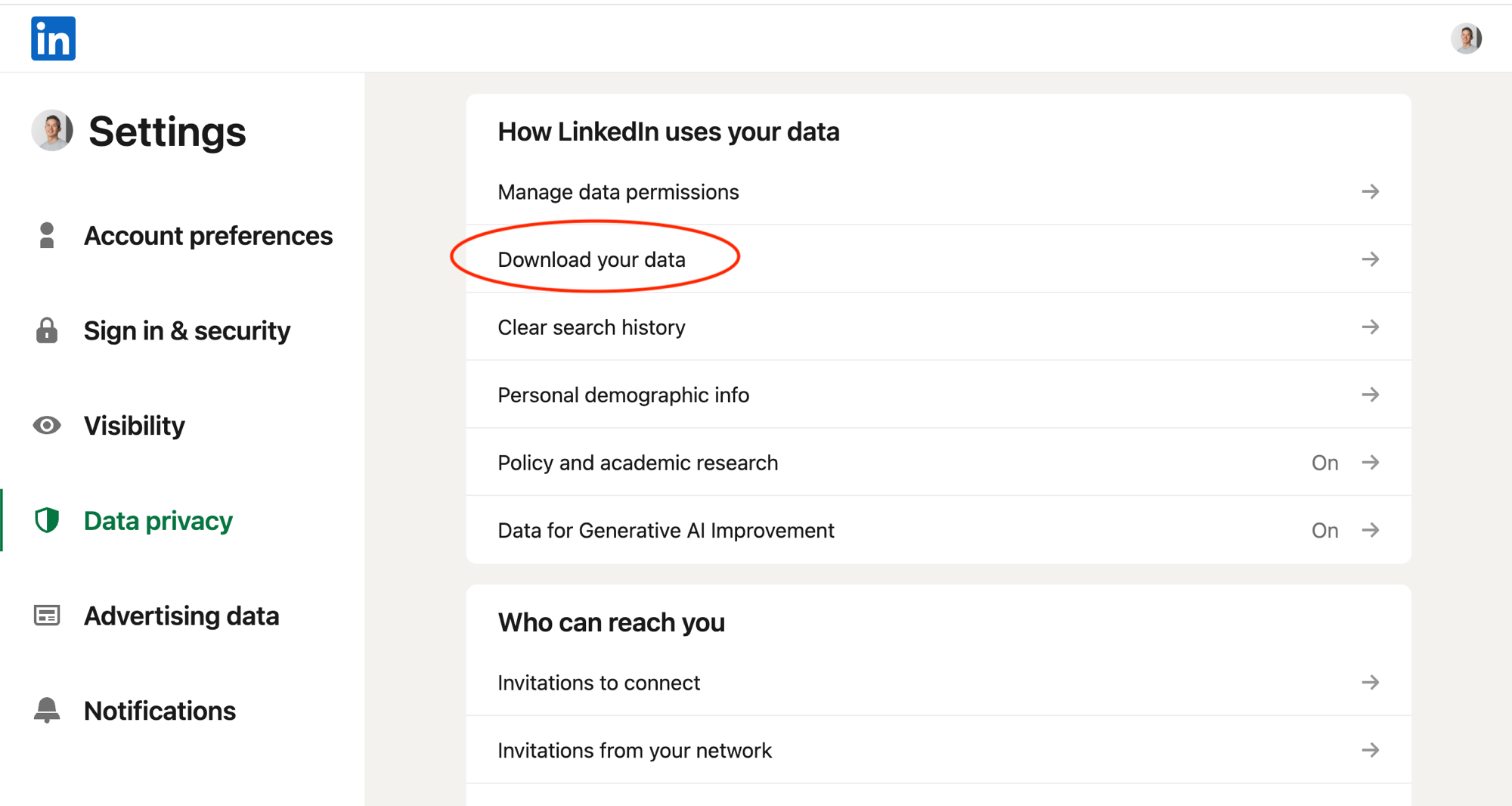
1. Go to [LinkedIn Data Privacy settings](https://www.linkedin.com/mypreferences/d/categories/privacy)
2. Click **"Get a copy of your data"**
3. Select **"Connections"** (and optionally **"Messages"** for AI summaries) and click **"Request archive"**
4. Wait for the email - LinkedIn often sends two exports over 24-48 hours. The second, larger one is the one you want
5. Download the ZIP and extract it - find **Connections.csv** (and optionally **Messages.csv**)
 **How to import:**
1. Go to [**Contacts**](https://every.ai/contacts) → **Import** dropdown → **LinkedIn**
2. Upload your `Connections.csv` file
3. Preview new contacts (duplicates are auto-filtered)
4. Click **Import**
**What gets imported:** Name, email (if available), job title, company (in notes), LinkedIn profile URL
After importing contacts, upload your LinkedIn `Messages.csv` to generate AI-powered relationship timelines.
1. After contact import completes, click **"Upload Messages.csv"**
2. Every matches your message history to imported contacts via LinkedIn profile URLs
3. AI analyzes your conversations and generates concise summaries
4. Summaries appear in each contact's notes section
**Example AI summary:**
```
## LinkedIn Message History
2024 - Connected and discussed potential collaboration
2024 - Caught up at industry conference
2025 - Discussed hiring for board company
```
Relationship summaries help Every Agent understand your history with each contact, enabling better personalized communication suggestions.
### Google Contacts Import
Import your entire Google Contacts library with one click.
**How to import:**
1. Go to [**Contacts**](https://every.ai/contacts) → **Import** dropdown → **Google Contacts**
2. Authorize Google Contacts access if not already connected
3. Preview new vs. existing contacts
4. Click **Import**
**What gets imported:** Name, email, phone, organization, social URLs (LinkedIn, Twitter, etc.)
Google Contacts **Import** brings in all your contacts. The **Scan Contacts** workflow on the Home dashboard is different - it uses AI to identify which contacts look like potential business clients.
### Scan Contacts (AI-Powered)
Let Every Agent analyze your Gmail, Calendar, and Google Contacts to suggest contacts that look like business leads.
**How it works:**
1. On the [**Home**](https://every.ai) dashboard → **Import Data** card → **Scan Contacts**
2. Every Agent scans recent email, calendar, and contact activity
3. Review suggested contacts and select ones to add
4. Contacts are created with context from your interactions
**Ask Every Agent:** "Scan my Google contacts and add any that look like potential clients"
### File Processing with Every Agent
Beyond direct imports, Every Agent can extract contact data from files you upload to chat.
**Supported formats:** CSV, Excel (XLSX, XLS), Word (DOCX), PDF, Images (JPG, PNG)
Upload your file and describe what you need - the agent reads and processes the data conversationally.
**Ask Every Agent:**
* "Import these contacts from my spreadsheet" (attach CSV or Excel)
* "Extract the client list from Sheet 2 of this Excel file"
* "Read this Word document and pull out all the contact names and emails"
## Linking Contacts to Clients
Contacts exist independently but can be **linked to one or more [clients](/clients/clients)** with role-based email routing. This means the same contact can be associated with multiple client companies.
### How Linking Works
When you link a contact to a client, you assign roles that control email routing:
**Invoice Role:**
* **Primary (TO):** Receives the main invoice email - exactly one required per client
* **CC:** Copied on invoice emails - can have multiple
* **None:** Not included in invoice emails
**Proposal Role:**
* **Primary (TO):** Receives the main proposal email
* **CC:** Copied on proposal emails
* **None:** Not included
**Example Setup:**
```
ACME Corp (Client) Contacts:
├── John Smith (CEO)
│ └── Invoices: CC | Proposals: Primary
├── Sarah Johnson (CFO)
│ └── Invoices: Primary | Proposals: CC
└── Accounts Team
└── Invoices: CC | Proposals: None
```
### Linking from Client Page
1. Open a [client](https://every.ai/clients) → **Edit** → **Add Contact**
2. Search for an existing contact or create a new one
3. Set invoice and proposal roles
4. First contact defaults to Primary for both
### Linking via Agent
**Ask Every Agent:** Manage contact-client links:
* "Link John Smith to ACME Corp as the primary invoice contact"
* "Add Sarah as a CC on proposals for TechStart Inc"
* "Show me all contacts linked to ACME Corp"
* "Set the billing team contact as CC on invoices for all enterprise clients"
You must have exactly one Primary (TO) contact per document type on each client. You cannot have CC recipients without a Primary.
## Contact Enrichment
AI-powered enrichment helps fill in contact details automatically.
**During client enrichment:** When you [enrich a client](/clients/clients#client-enrichment), Every Agent can discover additional contacts at the company by scanning Gmail headers and Google Contacts for matching email domains.
**Google Contacts sync:** Every tracks which of your contacts exist in team members' Google Contacts. A sync indicator shows on matching contacts.
## Managing Contacts
### Viewing & Filtering
Go to [**Contacts**](https://every.ai/contacts) to see all contacts with:
* Search by name, email, company, phone
* Filter by linked clients
* Sort by name, date added, or recent activity
**Ask Every Agent:** Find contacts:
* "Find the contact John Smith"
* "Show me all contacts at acme.com"
* "List contacts I added this month"
* "Who are the contacts linked to ACME Corp?"
### Editing Contacts
Open contact → **Edit** → Update fields → **Save**
**Ask Every Agent:** Update contact details:
* "Update John Smith's email to [john.smith@newcompany.com](mailto:john.smith@newcompany.com)"
* "Change Sarah's job title to VP of Finance"
* "Add phone number 555-1234 to the contact Mike Chen"
### Archiving & Deleting
**Archive:** Hides contact from active list while preserving data and links. Can be restored anytime.
**Delete:** Permanently removes the contact. Only possible if not linked as a Primary recipient on any client.
**Ask Every Agent:** Archive or delete:
* "Archive the contact Old Contact Name"
* "Delete the test contact I just created"
### Social & Web Links
Add LinkedIn profiles, websites, and other social links to contacts for quick reference.
**Supported Links:** Website, LinkedIn, Twitter, Facebook, Instagram, YouTube, GitHub
Social links are often populated automatically during import (LinkedIn URLs) or enrichment.
## Contacts vs. Clients
Understanding the distinction:
| | Contacts | Clients |
| ---------------- | ------------------------------------ | ------------------------------- |
| **Represents** | People (individuals) | Companies/businesses |
| **Examples** | John Smith, Sarah Johnson | ACME Corp, TechStart Inc |
| **Relationship** | Can be linked to multiple clients | Has multiple contacts linked |
| **Primary use** | Email routing, relationship tracking | Invoicing, proposals, billing |
| **Import from** | LinkedIn, Google Contacts | Manual, Google scan, enrichment |
```
Contact (Person) Client (Company)
├── John Smith ──────────────────── ACME Corp
│ ├── email: john@acme.com ├── Invoices
│ ├── title: CEO ├── Proposals
│ └── roles: ├── Time Tracking
│ ├── ACME: Invoice CC ├── Expenses
│ └── ACME: Proposal Primary └── Automations
│
├── Sarah Johnson ───────────────── ACME Corp
│ └── roles: (same client, different roles)
│ └── ACME: Invoice Primary
│
└── Mike Chen ───────────────────── TechStart Inc
└── roles: (different client entirely)
└── TechStart: Invoice Primary
```
## Best Practices
**Import early** - Bring in your LinkedIn and Google contacts to build your network in Every from day one.
**Set roles carefully** - Ensure each client has exactly one Primary invoice contact for reliable email delivery.
**Keep contacts updated** - When people change roles or companies, update their contact info and client links.
**Use AI summaries** - Upload LinkedIn Messages.csv after import for valuable relationship context.
## Troubleshooting
**Contact not receiving invoices:** Verify the contact is linked to the client with a Primary or CC invoice role. Check email address is correct.
**Duplicate contacts after import:** System checks by email for duplicates. If imported from multiple sources (LinkedIn + Google), merge manually or ask Every Agent.
**Can't delete contact:** Contact may be set as Primary recipient on a client. Set another contact as Primary first.
**LinkedIn import missing emails:** Many LinkedIn users don't share email addresses. Contacts are still imported by name - enrich later to find contact details.
## Next Steps
Link contacts to client companies
Send invoices to your contacts
Send proposals to contacts at client companies
Learn more about what the agent can do
**Need help?** Contact support at [hello@every.ai](mailto:hello@every.ai)
**How to import:**
1. Go to [**Contacts**](https://every.ai/contacts) → **Import** dropdown → **LinkedIn**
2. Upload your `Connections.csv` file
3. Preview new contacts (duplicates are auto-filtered)
4. Click **Import**
**What gets imported:** Name, email (if available), job title, company (in notes), LinkedIn profile URL
After importing contacts, upload your LinkedIn `Messages.csv` to generate AI-powered relationship timelines.
1. After contact import completes, click **"Upload Messages.csv"**
2. Every matches your message history to imported contacts via LinkedIn profile URLs
3. AI analyzes your conversations and generates concise summaries
4. Summaries appear in each contact's notes section
**Example AI summary:**
```
## LinkedIn Message History
2024 - Connected and discussed potential collaboration
2024 - Caught up at industry conference
2025 - Discussed hiring for board company
```
Relationship summaries help Every Agent understand your history with each contact, enabling better personalized communication suggestions.
### Google Contacts Import
Import your entire Google Contacts library with one click.
**How to import:**
1. Go to [**Contacts**](https://every.ai/contacts) → **Import** dropdown → **Google Contacts**
2. Authorize Google Contacts access if not already connected
3. Preview new vs. existing contacts
4. Click **Import**
**What gets imported:** Name, email, phone, organization, social URLs (LinkedIn, Twitter, etc.)
Google Contacts **Import** brings in all your contacts. The **Scan Contacts** workflow on the Home dashboard is different - it uses AI to identify which contacts look like potential business clients.
### Scan Contacts (AI-Powered)
Let Every Agent analyze your Gmail, Calendar, and Google Contacts to suggest contacts that look like business leads.
**How it works:**
1. On the [**Home**](https://every.ai) dashboard → **Import Data** card → **Scan Contacts**
2. Every Agent scans recent email, calendar, and contact activity
3. Review suggested contacts and select ones to add
4. Contacts are created with context from your interactions
**Ask Every Agent:** "Scan my Google contacts and add any that look like potential clients"
### File Processing with Every Agent
Beyond direct imports, Every Agent can extract contact data from files you upload to chat.
**Supported formats:** CSV, Excel (XLSX, XLS), Word (DOCX), PDF, Images (JPG, PNG)
Upload your file and describe what you need - the agent reads and processes the data conversationally.
**Ask Every Agent:**
* "Import these contacts from my spreadsheet" (attach CSV or Excel)
* "Extract the client list from Sheet 2 of this Excel file"
* "Read this Word document and pull out all the contact names and emails"
## Linking Contacts to Clients
Contacts exist independently but can be **linked to one or more [clients](/clients/clients)** with role-based email routing. This means the same contact can be associated with multiple client companies.
### How Linking Works
When you link a contact to a client, you assign roles that control email routing:
**Invoice Role:**
* **Primary (TO):** Receives the main invoice email - exactly one required per client
* **CC:** Copied on invoice emails - can have multiple
* **None:** Not included in invoice emails
**Proposal Role:**
* **Primary (TO):** Receives the main proposal email
* **CC:** Copied on proposal emails
* **None:** Not included
**Example Setup:**
```
ACME Corp (Client) Contacts:
├── John Smith (CEO)
│ └── Invoices: CC | Proposals: Primary
├── Sarah Johnson (CFO)
│ └── Invoices: Primary | Proposals: CC
└── Accounts Team
└── Invoices: CC | Proposals: None
```
### Linking from Client Page
1. Open a [client](https://every.ai/clients) → **Edit** → **Add Contact**
2. Search for an existing contact or create a new one
3. Set invoice and proposal roles
4. First contact defaults to Primary for both
### Linking via Agent
**Ask Every Agent:** Manage contact-client links:
* "Link John Smith to ACME Corp as the primary invoice contact"
* "Add Sarah as a CC on proposals for TechStart Inc"
* "Show me all contacts linked to ACME Corp"
* "Set the billing team contact as CC on invoices for all enterprise clients"
You must have exactly one Primary (TO) contact per document type on each client. You cannot have CC recipients without a Primary.
## Contact Enrichment
AI-powered enrichment helps fill in contact details automatically.
**During client enrichment:** When you [enrich a client](/clients/clients#client-enrichment), Every Agent can discover additional contacts at the company by scanning Gmail headers and Google Contacts for matching email domains.
**Google Contacts sync:** Every tracks which of your contacts exist in team members' Google Contacts. A sync indicator shows on matching contacts.
## Managing Contacts
### Viewing & Filtering
Go to [**Contacts**](https://every.ai/contacts) to see all contacts with:
* Search by name, email, company, phone
* Filter by linked clients
* Sort by name, date added, or recent activity
**Ask Every Agent:** Find contacts:
* "Find the contact John Smith"
* "Show me all contacts at acme.com"
* "List contacts I added this month"
* "Who are the contacts linked to ACME Corp?"
### Editing Contacts
Open contact → **Edit** → Update fields → **Save**
**Ask Every Agent:** Update contact details:
* "Update John Smith's email to [john.smith@newcompany.com](mailto:john.smith@newcompany.com)"
* "Change Sarah's job title to VP of Finance"
* "Add phone number 555-1234 to the contact Mike Chen"
### Archiving & Deleting
**Archive:** Hides contact from active list while preserving data and links. Can be restored anytime.
**Delete:** Permanently removes the contact. Only possible if not linked as a Primary recipient on any client.
**Ask Every Agent:** Archive or delete:
* "Archive the contact Old Contact Name"
* "Delete the test contact I just created"
### Social & Web Links
Add LinkedIn profiles, websites, and other social links to contacts for quick reference.
**Supported Links:** Website, LinkedIn, Twitter, Facebook, Instagram, YouTube, GitHub
Social links are often populated automatically during import (LinkedIn URLs) or enrichment.
## Contacts vs. Clients
Understanding the distinction:
| | Contacts | Clients |
| ---------------- | ------------------------------------ | ------------------------------- |
| **Represents** | People (individuals) | Companies/businesses |
| **Examples** | John Smith, Sarah Johnson | ACME Corp, TechStart Inc |
| **Relationship** | Can be linked to multiple clients | Has multiple contacts linked |
| **Primary use** | Email routing, relationship tracking | Invoicing, proposals, billing |
| **Import from** | LinkedIn, Google Contacts | Manual, Google scan, enrichment |
```
Contact (Person) Client (Company)
├── John Smith ──────────────────── ACME Corp
│ ├── email: john@acme.com ├── Invoices
│ ├── title: CEO ├── Proposals
│ └── roles: ├── Time Tracking
│ ├── ACME: Invoice CC ├── Expenses
│ └── ACME: Proposal Primary └── Automations
│
├── Sarah Johnson ───────────────── ACME Corp
│ └── roles: (same client, different roles)
│ └── ACME: Invoice Primary
│
└── Mike Chen ───────────────────── TechStart Inc
└── roles: (different client entirely)
└── TechStart: Invoice Primary
```
## Best Practices
**Import early** - Bring in your LinkedIn and Google contacts to build your network in Every from day one.
**Set roles carefully** - Ensure each client has exactly one Primary invoice contact for reliable email delivery.
**Keep contacts updated** - When people change roles or companies, update their contact info and client links.
**Use AI summaries** - Upload LinkedIn Messages.csv after import for valuable relationship context.
## Troubleshooting
**Contact not receiving invoices:** Verify the contact is linked to the client with a Primary or CC invoice role. Check email address is correct.
**Duplicate contacts after import:** System checks by email for duplicates. If imported from multiple sources (LinkedIn + Google), merge manually or ask Every Agent.
**Can't delete contact:** Contact may be set as Primary recipient on a client. Set another contact as Primary first.
**LinkedIn import missing emails:** Many LinkedIn users don't share email addresses. Contacts are still imported by name - enrich later to find contact details.
## Next Steps
Link contacts to client companies
Send invoices to your contacts
Send proposals to contacts at client companies
Learn more about what the agent can do
**Need help?** Contact support at [hello@every.ai](mailto:hello@every.ai)